Top Menu

Friday, June 4, 2010

SharePoint 2007 Web Service: Get Items

Use lists.asmx to get the items through a desktop application

Below is the C# function to call the lists.asmx MOSS Web Service to get list items from a list/document library.
Add reference to lists.asmx to your project and use the following code:


private void GetItems(string strListName)
{

try
{
    #region Connect to URL

    this.m_objWSSListService.Url = this.cmbURL.Text.Trim('/') + "/_vti_bin/lists.asmx";

    string sDomain = string.Empty;
    string sUserName = this.txtLogin.Text.Trim();
    if (sUserName.IndexOf("\\") > 0)
    {
        sDomain = sUserName.Split("\\".ToCharArray())[0];
        sUserName = sUserName.Split("\\".ToCharArray())[1];
    }

    this.m_objWSSListService.Credentials = new System.Net.NetworkCredential(sUserName, this.txtPassword.Text.Trim(), sDomain);

    #endregion

    string sListName = strListName;
    string SourceDocumentURL = "";
    string strTempLocation = "C:\\Temp\\";
    string strFileName = "";

    System.Xml.XmlNode xnListSchema = m_objWSSListService.GetList(sListName);

    //get the Data from the List
    System.Xml.XmlDocument xdListData = new System.Xml.XmlDocument();
    System.Xml.XmlNode xnQuery = xdListData.CreateElement("Query");
    System.Xml.XmlNode xnViewFields = xdListData.CreateElement("ViewFields");
    System.Xml.XmlNode xnQueryOptions = xdListData.CreateElement("QueryOptions");

    System.Xml.XmlNode xnListData = m_objWSSListService.GetListItems(sListName, null, xnQuery, xnViewFields, null, xnQueryOptions);


    if (!Directory.Exists(strTempLocation))
    {
        Directory.CreateDirectory(strTempLocation);
    }

    foreach (XmlNode outerNode in xnListData.ChildNodes)
    {
        if (outerNode.NodeType.Equals(System.Xml.XmlNodeType.Element))
        {
            foreach (XmlNode node in outerNode.ChildNodes)
            {
                if (node.NodeType.Equals(System.Xml.XmlNodeType.Element))
                {
                    MessageBox.Show(node.Attributes.GetNamedItem("ows_Title").InnerText);
                }
            }
        }
    }

}
catch (System.Exception ex)
{

    this.WriteLog(ex.ToString());
}

}

Wednesday, June 2, 2010

SharePoint 2007 Web Service: Create Folder in Document Library

Use lists.asmx to create folder in a document library through a desktop application

Below is the C# function to call the lists.asmx MOSS Web Service to create folders in a document library.
Add reference to lists.asmx to your project and use the following code:


private void CreateFolder(string strPath, string strListName)
{

try
{
#region Connect to URL

this.m_objWSSListService.Url = this.cmbURL.Text.Trim('/') + "/_vti_bin/lists.asmx";

string sDomain = string.Empty;
string sUserName = this.txtLogin.Text.Trim();
if (sUserName.IndexOf("\\") > 0)
{
    sDomain = sUserName.Split("\\".ToCharArray())[0];
    sUserName = sUserName.Split("\\".ToCharArray())[1];
}

this.m_objWSSListService.Credentials = new System.Net.NetworkCredential(sUserName, this.txtPassword.Text.Trim(), sDomain);

#endregion

System.Xml.XmlDocument xmlDoc = new System.Xml.XmlDocument();
System.Xml.XmlElement Batch = xmlDoc.CreateElement("Batch");

Batch.SetAttribute("OnError", "Continue");
Batch.SetAttribute("ListVersion", "0");
string strBatch = "<method id="1" cmd="New">";
strBatch = strBatch + "<field name="ID">New</field>";
strBatch = strBatch + "<field name="FSObjType">1</field>";
strBatch = strBatch + "<field name="FileRef">" + strPath + "</field></method>";

Batch.InnerXml = strBatch;
XmlNode ndReturn = this.m_objWSSListService.UpdateListItems(strListName, Batch);
if (ndReturn.FirstChild.FirstChild.InnerText != "0x00000000")
{
    this.WriteLog(ndReturn.InnerText);
}

this.WriteLog("Create Operation - List:" + strListName + " - Folder: " + strPath);


}
catch (System.Exception ex)
{
this.WriteLog(ex.ToString());
}

}

SharePoint 2007 Web Service: Download Documents

Use lists.asmx to download the documents from a document library through a desktop application

Below is the C# function to call the lists.asmx MOSS Web Service to download the documents from a document library.
Add reference to lists.asmx to your project and use the following code:


private void DownloadDocumnts(string strListName)
{

try
{
    #region Connect to URL

    this.m_objWSSListService.Url = this.cmbURL.Text.Trim('/') + "/_vti_bin/lists.asmx";

    string sDomain = string.Empty;
    string sUserName = this.txtLogin.Text.Trim();
    if (sUserName.IndexOf("\\") > 0)
    {
        sDomain = sUserName.Split("\\".ToCharArray())[0];
        sUserName = sUserName.Split("\\".ToCharArray())[1];
    }

    this.m_objWSSListService.Credentials = new System.Net.NetworkCredential(sUserName, this.txtPassword.Text.Trim(), sDomain);

    #endregion

    string sListName = strListName;
    string SourceDocumentURL = "";
    string strTempLocation = "C:\\Temp\\";
    string strFileName = "";

    System.Xml.XmlNode xnListSchema = m_objWSSListService.GetList(sListName);

    //get the Data from the List
    System.Xml.XmlDocument xdListData = new System.Xml.XmlDocument();
    System.Xml.XmlNode xnQuery = xdListData.CreateElement("Query");
    System.Xml.XmlNode xnViewFields = xdListData.CreateElement("ViewFields");
    System.Xml.XmlNode xnQueryOptions = xdListData.CreateElement("QueryOptions");

    System.Xml.XmlNode xnListData = m_objWSSListService.GetListItems(sListName, null, xnQuery, xnViewFields, null, xnQueryOptions);


    if (!Directory.Exists(strTempLocation))
    {
        Directory.CreateDirectory(strTempLocation);
    }

    foreach (XmlNode outerNode in xnListData.ChildNodes)
    {
        if (outerNode.NodeType.Equals(System.Xml.XmlNodeType.Element))
        {
            foreach (XmlNode node in outerNode.ChildNodes)
            {
                if (node.NodeType.Equals(System.Xml.XmlNodeType.Element))
                {
                    XmlNode FileNameNode = node.Attributes.GetNamedItem("ows_EncodedAbsUrl");
                    SourceDocumentURL = FileNameNode.InnerText;
                    strFileName = SourceDocumentURL.Substring(SourceDocumentURL.LastIndexOf('/') + 1).Replace("%20", " ");

                    /*
                     * ?noredirect=true 
                     * will not open the file in default program (e.g. XSN for InfoPath), instead it will download the file
                     * 
                     * */

                    System.Net.WebClient objWebClient = new System.Net.WebClient();
                    objWebClient.Credentials = CredentialCache.DefaultCredentials;
                    objWebClient.DownloadFile(SourceDocumentURL + "?noredirect=true" ,strTempLocation + strFileName);

                    this.WriteLog("File Downloaded: " + SourceDocumentURL);
                }
            }
        }
    }

}
catch (System.Exception ex)
{

    this.WriteLog(ex.ToString());
}

}
Tuesday, June 1, 2010

SharePoint 2007 Web Service: Create User Group

Use UserGroup.asmx to create User Group through a desktop application

Below is the C# function to call the UserGroup.asmx MOSS Web Service to create Uer Groups.
Add reference to UserGroup.asmx to your project and use the following code:


private void CreateUserGroup(string strGroupName, string strDescription)
{
try
{

    #region Connect to UserGroup.asmx

    this.objUserGroupService.Url = this.cmbURL.Text.Trim('/') + "/_vti_bin/UserGroup.asmx";

    string sDomain = string.Empty;
    string sUserName = this.txtLogin.Text.Trim();
    if (sUserName.IndexOf("\\") > 0)
    {
        sDomain = sUserName.Split("\\".ToCharArray())[0];
        sUserName = sUserName.Split("\\".ToCharArray())[1];
    }

    this.objUserGroupService.Credentials = new System.Net.NetworkCredential(sUserName, this.txtPassword.Text.Trim(), sDomain);

    #endregion

    this.objUserGroupService.AddGroup(strGroupName, this.txtLogin.Text.Trim(), "user", this.txtLogin.Text.Trim(), strDescription);
    this.WriteLog("Created Group: " + strGroupName);


}
catch (System.Exception ex)
{
    
    this.WriteLog(ex.ToString());
}
}
Sunday, May 9, 2010

Developing Custom WebPart using ASP.NET Web User Control


In this post I will explian how to build a custom WebPart for SharePoint 2007 and how to use ASP.NET Web User Control in it. I am using Visual Studio 2008 for the development.

Following are the steps to create a custom webpart and calling/loading Web User Control in it:

Building WebPart and Web User Control project
  1. Craete ASP.NET Web Application Project.

  2. Delete Default.aspx.

  3. Add two new folders: UserControls and WebPart into the solution.

  4. Add new Web User Control in UserControls folder.

  5. Add new CS Class file TrainingWP.cs in WebPart folder.

  6. Add reference to SharePoint.dll (C:\Program Files\Common Files\Microsoft Shared\Web Server Extensions\12\ISAPI\Microsoft.SharePoint.dll)

  7. Add followign code to TrainingWP.cs


  8. namespace Training
    {
    [Guid("2E4AFAAA-AE99-4e15-9972-E6195EFBDD9C")]
    public class TrainingWP : WebPart
    {
    private Control uc = null;
    private string ucPath = "~/UserControls/TrainingUC.ascx";

    protected override void CreateChildControls()
    {
    try
    {
    uc = Page.LoadControl(ucPath);
    this.Controls.Add(uc);
    }
    catch (Exception ex)
    {
    throw ex;
    }
    finally
    {
    base.CreateChildControls();
    }
    }
    }
    }

    We are overriding the CreateChildControls method of the WebPart class in which we will load the Web User Control.
  9. Go to Tools -> Create GUID and copy/paste GUID above the class and add reference using System.Runtime.InteropServices; line.
  10. Open code behind for Web User Control and add using Microsoft.SharePoint; line and in Page_Load function write hello world code and build the solution.


Deploying the WebPart and the Web User Control
  1. In Project Properties -> Build Event tab -> Post-build Event Command add following line:
    "C:\Program Files\Microsoft SDKs\Windows\v6.0A\Bin\gacutil.exe" /i $(TargetPath)
    This will deploy our webpart dll into GAC after building the solution.

  2. In Project Properties -> Signing tab -> check Sign Assembly -> and give a name.

  3. Build the solution and WebPart should be deployed into GAC (c:\Windows\assembly).

  4. Create DWP File using following XML


  5. Cannot import this Web Part.


    Training Web Part


  6. Upload DWP file to WebPart Gallery. DWP file tells SharePoint to load which library when webpart is called.

  7. Open the root folder of the Web Application and edit Web.config. Under <SafeControls> add following line


  8. Under <assemblies> in Web.config add following line


  9. Copy UserControls folder in to the root folder of the Web Application.(Just copy ASCX)

  10. Do iisreset and add the WebPart on the page through Web UI of the site.


Thats it :o). Happy Programming.

Tuesday, April 27, 2010

Pointing DataView to List Name (Not List GUIID)


I had a requirement to display items from a Document library in DataView WebPart and tricky part was to make it portable, so that everytime a site template is created and restored somewhere else, the DataView should not crash.

Solution:
Change the following XSL for DataView WebPart:
1. Update Name="ListID" to Name="ListName"
2. Update ParameterKey="ListID" to ParameterKey="ListName"
3. Update DefaultValue="GUID" to DefaultValue="[List Name]"
in SelectParameters, DeleteParameters, UpdateParameters, InsertParameters and ParameterBindings tags.

<selectparameters>
 <webpartpages:dataformparameter defaultvalue="Components" name="ListName" parameterkey="ListName" propertyname="ParameterValues">
</webpartpages:dataformparameter></selectparameters>

<deleteparameters>
 <webpartpages:dataformparameter defaultvalue="Components" name="ListName" parameterkey="ListName" propertyname="ParameterValues">
</webpartpages:dataformparameter></deleteparameters>

<updateparameters>
 <webpartpages:dataformparameter defaultvalue="Components" name="ListName" parameterkey="ListName" propertyname="ParameterValues">
</webpartpages:dataformparameter></updateparameters>

<insertparameters>
 <webpartpages:dataformparameter defaultvalue="Components" name="ListName" parameterkey="ListName" propertyname="ParameterValues">
</webpartpages:dataformparameter></insertparameters>

<parameterbinding defaultvalue="Components" location="None" name="ListName">
</parameterbinding>

Thursday, April 15, 2010

Intractive SharePoint Charts with No Code

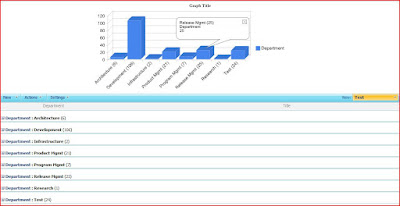
Recently I came across this amazing article of Claudio (http://www.endusersharepoint.com/2009/04/20/finally-dynamic-charting-in-wss-no-code-required/) about displaying the graphs from a SharePoint list data without writing any code (of course JavaScript is code but we are referring to C# here ;o)). It shows how you can display pie-chart (Google Charts) with a small JavaScript code added to CEWP which works on your SharePoint Data.


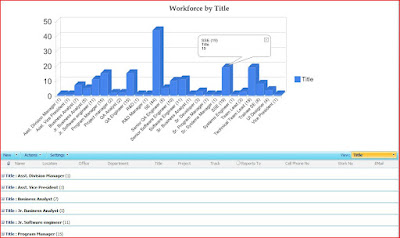
I have extended the same technique (JavaScript) to display the Interactive Google Charts based on the SharePoint Data without writing any code :o). The javascript code uses JQuery and Google Interactive Charts (aka Visualization API).

You need to perform following steps:
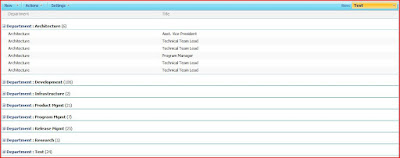
1. Create a new SharePoint List View.
2. Group the data by a Column e.g. Title.

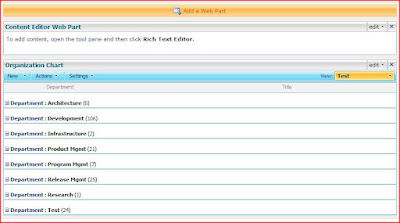
3. Add Content Editor WebPart

4. Select Edit-> Modify Shared WebPart -> Source Editor and paste the following JavaScript:

<!--
Author: Tahir Naveed
Date: 2010-04-15
Article URL:http://mysplist.blogspot.com/2010/04/intractive-sharepoint-charts-with-no.html
Blog URL: http://mysplist.blogspot.com/
Original Code: http://www.endusersharepoint.com/2009/04/29/finally-dynamic-charting-in-wss-no-code-required-part-3-multiple-pie-charts
-->
<SCRIPT type=text/javascript>
if(typeof jQuery=="undefined")
{
    var jQPath="http://ajax.googleapis.com/ajax/libs/jquery/1.3.2/";
    document.write("<script src='",jQPath,"jquery.js' type='text/javascript'><\/script>");
}
</SCRIPT>

<script type="text/javascript" src="http://www.google.com/jsapi">
</script> 

<SCRIPT type=text/javascript>
var ColValue = new Array();
var ColName = new Array();

// Getting the Data
$("document").ready(function(){
 var arrayList=$("td.ms-gb:contains(':')");
 var coord= new Array();
 var labels= new Array();
 $.each(arrayList, function(i,e)
 {
  var MyIf= $(e).text();
  var txt= MyIf.substring(MyIf.indexOf('(')+1,MyIf.length-1); 
  // Extract the 'Y' coordinates
  coord[i]=txt;
  var txt1= MyIf.substring(MyIf.indexOf(':')+2,MyIf.indexOf("(")-1); 
  // Extract the labels
  labels[i]=txt1+"("+txt+")";   
  //add also coordinates for better read
 });
 ColValue = coord;
 ColName = labels;
 });

//Graph Rendering
google.load("visualization", "1", {packages:["columnchart"]}); 
google.setOnLoadCallback(drawChart); 
function drawChart() 
{ 
  var data = new google.visualization.DataTable();
  data.addColumn('string', 'Department'); 
  data.addColumn('number', 'Department'); 
  data.addRows(ColValue.length);
  for (i=0; i<ColValue.length; i++)
  {
   data.setValue(i, 0, ColName[i]);
   data.setValue(i, 1, parseInt(ColValue[i]));
  }
  var chart = new google.visualization.ColumnChart(document.getElementById('chart_div')); 
  chart.draw(data, {width: 600, height: 240, is3D: true, title: 'Graph Title'}); 
} 
</script>

<div id="chart_div" align="center"></div>


5. You will see the error message: Internet Explorer cannot display the WebPage. Ignore the message and remove the ?PageView=Shared from URL and refresh the page. You should be able to see the chart as follows:

Official SharePoint Documentation

I have recently contributed to the official SharePoint documentation for developement. Check it out here: https://docs.microsoft.com/en-us...