SharePoint DesierState Configuration has Ben released.
Url: https://github.com/PowerShell/SharePointDsc
While in pre-release mode it was called xSharePoint.
Sunday, June 12, 2016

Thursday, March 10, 2016
SharePoint Online - JavaScript Injection with PowerShell
Scenario:
Updating the Master Page for SharePoint Online is not recommended by Microsoft now.....fine. So how do we change the UI then? And the answer is...by injecting JavaScript and CSS.
Solution:
You might want to watch this video of JavaScript injection which we will not follow here as injecting JavaScript and/or CSS through Visual Studio takes little bit of time as shown in the above video so I am putting pieces together to inject JavaScript using PowerShell very very...very quickly. Thank you Office Dev PnP's Erwin van Hunen.
Note: We are not going to use SharePoint Online Management Shell ;o) instead we will use Windows PowerShell.
Ref: OfficeDev/PnP-PowerShell Reference
Updating the Master Page for SharePoint Online is not recommended by Microsoft now.....fine. So how do we change the UI then? And the answer is...by injecting JavaScript and CSS.
Solution:
You might want to watch this video of JavaScript injection which we will not follow here as injecting JavaScript and/or CSS through Visual Studio takes little bit of time as shown in the above video so I am putting pieces together to inject JavaScript using PowerShell very very...very quickly. Thank you Office Dev PnP's Erwin van Hunen.
Note: We are not going to use SharePoint Online Management Shell ;o) instead we will use Windows PowerShell.
- Install PnP PowerShell Cmdlets for SharePoint Online
Url: https://github.com/officedev/pnp-powershell/releases - Perform a quick test: Run the command below in Windows PowerShell to see if it is available
Get-Command Add-SPOJavaScriptBlock
- Connect to the site where you want to push JavaScript code:
Connect-SPOnline https://tenant.sharepoint.com/sites/portal
- Push the JavaScript code.
Add-SPOJavaScriptBlock -Name MyScript -Script "alert('Hello World');"
or
Add-SPOJavaScriptLink -Name JQuery -Url https://code.jquery.com/jquery.min.js
- You are done. Now browse the site and you will get the annoying Hello World alert on all the pages.





#
# This is a sample script and is provided as is.
# Author: Tahir Naveed
# Description: This script connects to a SPO site and
# injects a JavaScript code block which will execute on all of the pages.
#
#

$url = "https://tenant.sharepoint.com/sites/portal"
$ScriptName = "MyScript"
$scriptBlock = "alert('Hello World');"

try
{
    #Connect to the SPO site
    Connect-SPOnline $url

    #Remove script if added before
    Remove-SPOJavaScriptLink -Name $ScriptName

    #Add the script
    Add-SPOJavaScriptBlock -Name $ScriptName -Script $scriptBlock

}
catch
{
    Write-Host "$_.Exception.Message"
}

Write-Host "Completed successfully." -ForegroundColor Green
Ref: OfficeDev/PnP-PowerShell Reference
Thursday, March 3, 2016
SharePoint - Export/Import Subsite
Scenario:
Lets suppose we have two SharePoint 2013 site collections and we want to export a sub-site from one site collection to another using PowerShell, then below is the answer.
Source: http://domain.com/sites/Site1/SubsiteA
Destination: http://domain.com/sites/Site2/SubsiteA
Solution:
Note: All the list, libraries, documents etc will get exported except for the workflows.
Ref: https://technet.microsoft.com/en-us/library/ff607895.aspx
Ref: https://technet.microsoft.com/en-us/library/ff607613.aspx
Ref: https://technet.microsoft.com/en-us/library/ee663490.aspx
Lets suppose we have two SharePoint 2013 site collections and we want to export a sub-site from one site collection to another using PowerShell, then below is the answer.
Source: http://domain.com/sites/Site1/SubsiteA
Destination: http://domain.com/sites/Site2/SubsiteA
Solution:
Export: Export-SPWeb "http://domain.com/sites/Site1/SubsiteA" -Path "C:\Temp\Export.cmp"
Import: Import-SPWeb "http://domain.com/sites/Site2/SubsiteA" -Path "C:\Temp\Export.cmp"
Note: All the list, libraries, documents etc will get exported except for the workflows.
Ref: https://technet.microsoft.com/en-us/library/ff607895.aspx
Ref: https://technet.microsoft.com/en-us/library/ff607613.aspx
Ref: https://technet.microsoft.com/en-us/library/ee663490.aspx
Wednesday, February 10, 2016
SharePoint - PowerApps (Mobile Apps)
So I can create mobile apps for Office365 without writing any code using Microsoft Power Apps......This is Awesome.
URL: https://powerapps.microsoft.com/en-us/tutorials/get-started-test-drive/#save-and-share-your-app
URL: https://powerapps.microsoft.com/en-us/tutorials/get-started-test-drive/#save-and-share-your-app
Friday, December 4, 2015
SharePoint - Responsive Design (Framework)
You can go to my previous post where I have explained how to implement responsive design in a SharePoint site using Bootstrap from scratch. Now we you will quickly figure out that implementing responsive design from scratch will take a lot of time, effort and learning. So in order to save time we will use a pre-built framework developed by a team of awesome people.
Perform following steps for SharePoint Online sites:
Perform following steps for SharePoint Online sites:
- Download the WSP.
- Follow page 17-22 of the documentation.
- And the site will look like this:

 DesktopMobile
 - Now after the site has been made responsive and works all great. You can download the Master Page foundation-4.3.2-server.master and customize according to your own branding. See pages 23-25 of the documentation.


Tuesday, December 1, 2015
SharePoint - Responsive Design (Bootstrap)
SharePoint Online pages are after all rendered as HTML/CSS and Java Script. In this post I will show how to create a responsive design for SharePoint Online pages using Bootstrap so that they look elegant on different screen sizes (Desktop, tablet, phone) .
Bootstrap is the most popular HTML, CSS, and JS framework for developing responsive, mobile first projects on the web. You can start learning about bootstrap here.
HTML Framework:
Following is the HTML framework that a HTML page should match in order to be responsive to multiple screen sizes.
This code will create 2 responsive divs inside a main container div. Container div will render the content inside the two divs as following on Desktop and the Mobile devices with the help of Bootstrap libraries:
Responsive SharePoint Page:
Now lets incorporate this framework in to a SharePoint Site.
Bootstrap is the most popular HTML, CSS, and JS framework for developing responsive, mobile first projects on the web. You can start learning about bootstrap here.
HTML Framework:
Following is the HTML framework that a HTML page should match in order to be responsive to multiple screen sizes.
<html lang="en">
  <head>
    <title>Bootstrap 101</title>

    <!-- Latest compiled and minified CSS -->
    <link rel="stylesheet" href="https://maxcdn.bootstrapcdn.com/bootstrap/3.3.5/css/bootstrap.min.css">

    <!-- Latest compiled and minified JavaScript -->
    <script src="https://maxcdn.bootstrapcdn.com/bootstrap/3.3.5/js/bootstrap.min.js"></script>

  </head>
  <body>

    <div class="container">
        <div class="row">
            <div class="col-sm-6" style="border:1px red solid">Hello</div>
            <div class="col-sm-6" style="border:1px green solid">World</div>
        </div>
    </div>

  </body>
</html>
This code will create 2 responsive divs inside a main container div. Container div will render the content inside the two divs as following on Desktop and the Mobile devices with the help of Bootstrap libraries:
 |  |
Desktop
|
Mobile
|
Responsive SharePoint Page:
Now lets incorporate this framework in to a SharePoint Site.
- Add following lines in the head tag of Master Page:

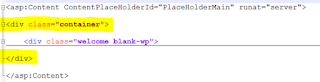
- Add the container div in the page inside the PlaceHolderMain tag so that all the HTML of the page resides inside the container div:
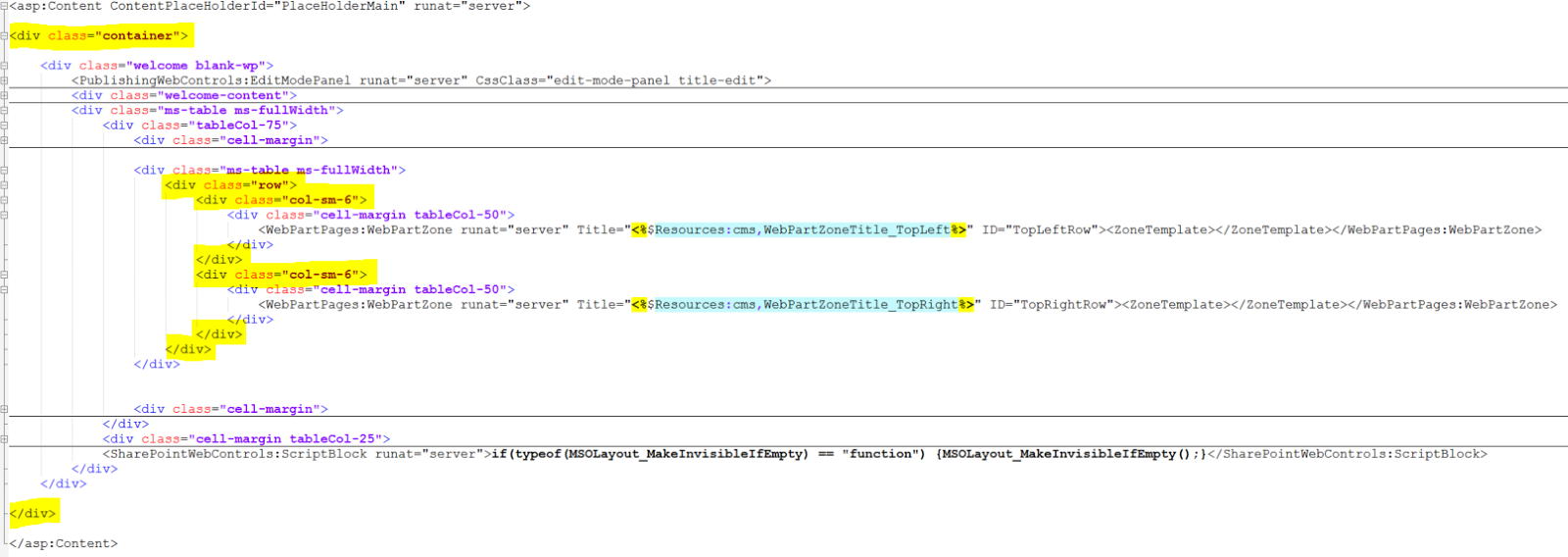
- Add the row div and then add the column divs to hold the actual web parts:

- Now the web parts on the page will be managed by container div and page will look like this on different screens:

 DesktopMobile




Thursday, August 27, 2015
SharePoint 2016(Preview) New Features
Microsoft has released the new and improved features in SharePoint Server 2016 IT Preview. Check out the following link:
https://technet.microsoft.com/en-us/library/mt346121(v=office.16).aspx
https://technet.microsoft.com/en-us/library/mt346121(v=office.16).aspx
Subscribe to:
Posts (Atom)
-
 Scenario: Updating the Master Page for SharePoint Online is not recommended by Microsoft now.....fine. So how do we change the UI then? And...
 -
 Microsoft introduced Office Graph a couple of months back which uses machine learning techniques to connect people to the relevant content,...
 -
 Recently my customers was looking for a solution where on-field guys can search for answers related to their tasks and it was a perfect scen...