Top Menu

Showing posts with label Javascript. Show all posts

Thursday, May 25, 2017

SharePoint Online Page Load Time with JavaScript

Scenario:
We know that Microsoft don't recommend any kind of load testing against SharePoint Online pages as mentioned here but still customers want to know how much time it takes to load a page to get a feel of the end user experience.

Solution:
To find the page load times, browsers (Edge, Chrome & Firefox) now have built-in support of Navigation Timing which is a JavaScript API to measure the performance of a web page. This API is exposed via performance.timing object. Performance Timing API provides following events of for a web page, which we can use in JavaScript to get the different times of page load:


Here is an example of JavaScript that calculates the complete page load time, starting from the user pressing the Go button in the browser till the page renders completely:
Load Time: <div id="LoadTime"> </div>

<script type="text/javascript" >

window.onload = function(){
  setTimeout(function(){
    var t = performance.timing;
    document.getElementById('LoadTime').innerHTML = t.loadEventEnd - t.navigationStart;
  }, 0);
}

</script>
Note that above script is calculating difference between loadEvendEnd (very last event) and navigationStart (very first event) which is simulating the end user experience. The time will be displayed in milliseconds. 
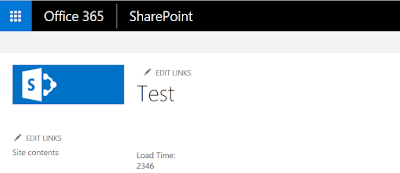


Similarly we can calculate the time between the request sent to server and response that came back from the server by calculating the difference between responseEnd and requestStart events. 

Tuesday, October 25, 2016

Office365 Subsite Logo Redirection

Scenario:
Sub-site logo points to the sub-site's home page by default...and the requirement is to point it to the top level site's.

Solution:
We can not change Master Page in Office365/SharePoint Online site so we need to embed/inject the following JavaScript:

<script type="text/javascript" src="https://ajax.googleapis.com/ajax/libs/jquery/1.7.2/jquery.min.js"></script>

<script language="javascript" type="text/javascript">

$(document).ready(function () {

    $('#ctl00_onetidProjectPropertyTitleGraphic').attr('href','/sites/Portal');
    $('#ctl00_onetidProjectPropertyTitleGraphic').removeAttr('id');

});

</script>

Friday, February 13, 2015

HTTP Request with Javascript

<script type="text/javascript">

var oReq = new ActiveXObject("MSXML2.XMLHTTP.3.0");

function handler()
{
    if (oReq.readyState == 4 /* complete */) {
        if (oReq.status == 200) {
            document.getElementById("myDiv").innerText = oReq.responseText;
        }
    }
}

function SendRequest()
{
    var vURL = "http://IdolApp:12345/data/data.xml";

    if (oReq != null) {
        oReq.open("GET", vURL, true);
        oReq.onreadystatechange = handler;
        oReq.send();
    }
    else {
        window.console.log("AJAX (XMLHTTP) not supported.");
    }
}

</script>
<input type="button" id="btnSubmit" value="Go" onclick="SendRequest()"/>
<br/>
<div id="myDiv" >:o)</div>
Ref: https://msdn.microsoft.com/en-us/library/ie/ms535874(v=vs.85).aspx

Note:
Initialize the oReq with following to make it IE and Chrome compatible:
var oReq;

if (window.XMLHttpRequest)
{// code for IE7+, Firefox, Chrome, Opera, Safari
 oReq=new XMLHttpRequest();
}
else
{// code for IE6, IE5
 oReq=new ActiveXObject("Microsoft.XMLHTTP");
}

Wednesday, October 1, 2014

Get Query String from JavaScript

I use this javascript function in every other project and every time I have to go to the internet and search for it. I am just too lazy to look and copy it from the old projects. So I am copying it from the internet to save it in my personal source code repository.
function getParameterByName(name) {
    name = name.replace(/[\[]/, "\\[").replace(/[\]]/, "\\]");
    var regex = new RegExp("[\\?&]" + name + "=([^&#]*)"),
        results = regex.exec(location.search);
    return results == null ? "" : decodeURIComponent(results[1].replace(/\+/g, " "));
}

var strValue = getParameterByName('Value');

document.write(strValue);

Friday, February 28, 2014

JavaScript Key Array

Today I discovered that javascript now supports Key Value Arrays....sweeeet.
<script type="text/javascript">

var Key = {
  a : "hello",
  b: "world"
}

alert(Key.a);
alert(Key.b);

</script>

Friday, November 15, 2013

Detect iPhone through JavaScript

Here is a quick script to redirect iOS (iphone and iPad) users to the mobile page.
<html>
<head>
<script type="text/javascript">
   if ((navigator.userAgent.match(/iPhone/i)) || (navigator.userAgent.match(/iPad/i))) {
        window.location = "Default_m.aspx";
        }
</script>
</head>
<body>
     This is a non mobile page.
</body>
</html>
This script should be inside the head tag for performance. Script will redirect user to mobile page before the body of the page gets rendered.

Wednesday, September 19, 2012

JQuery: Batch update the list items via Lists.asmx

Quick JQuery script to batch update the list items via Lists.asmx.

I have two lists Projects(Title, ProjectStatus) and Teams(Title, Project, ProjectStatus). Team.Project is a lookup column from Projects.Title and I want to update Teams.ProjectStatus when Projects.ProjectStatus is updated in the Projects list via EditForm.aspx. Now we can link two columns from projects list into the Teams list but can not connect them together in the Teams list, so following script was a great help. It batch updates the Teams.ProjectStatus once Project.ProjectStatus is updated.

Thanks to the this post I found 100% functionality ready to go.


<script type="text/javascript" src="/Scripts/jquery-1.8.1.min.js"></script>

<script type="text/javascript">

var strProject = "";
var strProjectStatus = "";

function PreSaveItem()
{
 strProject = document.getElementById('ctl00_m_g_f2d95e24_befb_49d2_b15f_823d71c9c758_ctl00_ctl04_ctl00_ctl00_ctl00_ctl04_ctl00_ctl00_TextField').value;
 strProjectStatus = document.getElementById('ctl00_m_g_f2d95e24_befb_49d2_b15f_823d71c9c758_ctl00_ctl04_ctl01_ctl00_ctl00_ctl04_ctl00_DropDownChoice').value;
 
 GetProjectID();
  
 return true;
}

function GetProjectID(){

var soapEnv = "<soap:Envelope xmlns:soap='http://schemas.xmlsoap.org/soap/envelope/'> \
<soap:Body> \
    <GetListItems xmlns='http://schemas.microsoft.com/sharepoint/soap/'> \
        <listName>Teams</listName> \
        <query><Query><Where><Eq><FieldRef Name='Project'/><Value Type='Text'>"+ strProject +"</Value> </Eq></Where></Query></query> \
        <viewFields> \
            <ViewFields> \
                <FieldRef Name='ID' /> \
                <FieldRef Name='Title' /> \
            </ViewFields> \
        </viewFields> \
        <rowLimit>99999</rowLimit> \
        <queryOptions xmlns:SOAPSDK9='http://schemas.microsoft.com/sharepoint/soap/' ><QueryOptions/> \
        </queryOptions> \
    </GetListItems> \
</soap:Body> \
</soap:Envelope>";

jQuery.ajax({
url: "/itsglobal/_vti_bin/lists.asmx",
type: "POST",
dataType: "xml",
data: soapEnv,
complete: ResultMethod,
contentType: "text/xml; charset=\"utf-8\""
});

}

function ResultMethod(xData, status) 
{

    if (status=="success")
    {
        var oldbatch = "";
        $(xData.responseXML).find("z\\:row").each(function() 
        {
            oldbatch = AddTobatch(oldbatch, $(this).attr("ows_ID"));
        });
        
        UpdateTeamItem(oldbatch);
    }

}

function AddTobatch(oldbatch, itemId)
{

//Specify the batch query
var _batch = "<Method ID='1' Cmd='Update'><Field Name='ID'>" + itemId +"</Field><Field Name='ProjectStatus'>"+ strProjectStatus +"</Field></Method>";
oldbatch = oldbatch + _batch;

return oldbatch;
}

function UpdateTeamItem(batch) 
{
var soapEnv = "<?xml version=\'1.0\' encoding=\'utf-8\'?> \
<soap:Envelope xmlns:xsi=\'http://www.w3.org/2001/XMLSchema-instance\' \
xmlns:xsd=\'http://www.w3.org/2001/XMLSchema\' \
xmlns:soap='http://schemas.xmlsoap.org/soap/envelope/\'> \
<soap:Body> \
<UpdateListItems xmlns='http://schemas.microsoft.com/sharepoint/soap/'> \
<listName>Teams</listName> \
<updates> \
<Batch OnError='Continue'>" + batch + "</Batch> \
</updates> \
</UpdateListItems> \
</soap:Body> \
</soap:Envelope>";

$.ajax({
url: "/itsglobal/_vti_bin/lists.asmx",
beforeSend: function(xhr) { xhr.setRequestHeader("SOAPAction", "http://schemas.microsoft.com/sharepoint/soap/UpdateListItems");
},
type: "POST",
dataType: "xml",
data: soapEnv,
complete: updateResult,
contentType: "text/xml; charset=\"utf-8\""

});
}

function updateResult(xData, status) {
if (status != 'success' )
    alert("Update Project Status in Teams library failed");
}


</script>

Thursday, April 15, 2010

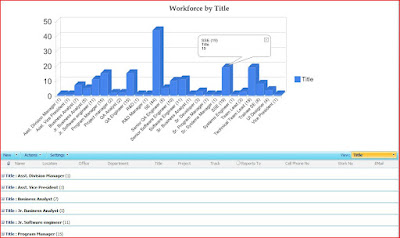
Intractive SharePoint Charts with No Code

Recently I came across this amazing article of Claudio (http://www.endusersharepoint.com/2009/04/20/finally-dynamic-charting-in-wss-no-code-required/) about displaying the graphs from a SharePoint list data without writing any code (of course JavaScript is code but we are referring to C# here ;o)). It shows how you can display pie-chart (Google Charts) with a small JavaScript code added to CEWP which works on your SharePoint Data.


I have extended the same technique (JavaScript) to display the Interactive Google Charts based on the SharePoint Data without writing any code :o). The javascript code uses JQuery and Google Interactive Charts (aka Visualization API).

You need to perform following steps:
1. Create a new SharePoint List View.
2. Group the data by a Column e.g. Title.

3. Add Content Editor WebPart

4. Select Edit-> Modify Shared WebPart -> Source Editor and paste the following JavaScript:

<!--
Author: Tahir Naveed
Date: 2010-04-15
Article URL:http://mysplist.blogspot.com/2010/04/intractive-sharepoint-charts-with-no.html
Blog URL: http://mysplist.blogspot.com/
Original Code: http://www.endusersharepoint.com/2009/04/29/finally-dynamic-charting-in-wss-no-code-required-part-3-multiple-pie-charts
-->
<SCRIPT type=text/javascript>
if(typeof jQuery=="undefined")
{
    var jQPath="http://ajax.googleapis.com/ajax/libs/jquery/1.3.2/";
    document.write("<script src='",jQPath,"jquery.js' type='text/javascript'><\/script>");
}
</SCRIPT>

<script type="text/javascript" src="http://www.google.com/jsapi">
</script> 

<SCRIPT type=text/javascript>
var ColValue = new Array();
var ColName = new Array();

// Getting the Data
$("document").ready(function(){
 var arrayList=$("td.ms-gb:contains(':')");
 var coord= new Array();
 var labels= new Array();
 $.each(arrayList, function(i,e)
 {
  var MyIf= $(e).text();
  var txt= MyIf.substring(MyIf.indexOf('(')+1,MyIf.length-1); 
  // Extract the 'Y' coordinates
  coord[i]=txt;
  var txt1= MyIf.substring(MyIf.indexOf(':')+2,MyIf.indexOf("(")-1); 
  // Extract the labels
  labels[i]=txt1+"("+txt+")";   
  //add also coordinates for better read
 });
 ColValue = coord;
 ColName = labels;
 });

//Graph Rendering
google.load("visualization", "1", {packages:["columnchart"]}); 
google.setOnLoadCallback(drawChart); 
function drawChart() 
{ 
  var data = new google.visualization.DataTable();
  data.addColumn('string', 'Department'); 
  data.addColumn('number', 'Department'); 
  data.addRows(ColValue.length);
  for (i=0; i<ColValue.length; i++)
  {
   data.setValue(i, 0, ColName[i]);
   data.setValue(i, 1, parseInt(ColValue[i]));
  }
  var chart = new google.visualization.ColumnChart(document.getElementById('chart_div')); 
  chart.draw(data, {width: 600, height: 240, is3D: true, title: 'Graph Title'}); 
} 
</script>

<div id="chart_div" align="center"></div>


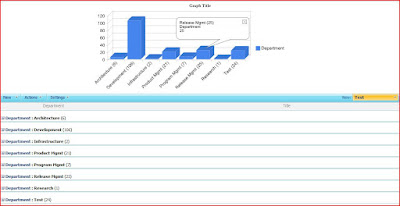
5. You will see the error message: Internet Explorer cannot display the WebPage. Ignore the message and remove the ?PageView=Shared from URL and refresh the page. You should be able to see the chart as follows:

Monday, May 11, 2009

Implementing Search in a SharePoint List

There are times when we want to search in a SharePoint list only, not in the whole portal. I ran into this requirement in my current project and implemented the search on a list using SharePoint Designer. I didn’t want to create a WebPart and with some research I was able to do it in SharePoint Designer. In this post I will explain what exactly I did.

To implement the search I created following two pages:
1. Search.aspx (This page will take input parameters)
2. SearchResults.aspx (This page will display results in DataView Control and filter the data based on the input parameters provided in the Search.aspx)

Let’s start the implementation:

1. I will not go into the details of Search.aspx page. All you can have on the Search.aspx page is a text box and a submit button. Clicking the button will redirect the use to SearchResults.aspx with the parameters attached into the Query String. Our final URL will look like:

Yup, I am searching for people in my list who have SharePoint skills.

2. Open the SearchResults.aspx in SharePoint Designer and insert the DataView Control. I applied Master Page so those pages don’t look like an alien :o).
3. Assign the DataSource of the list and at this point DataView should display all the items in the list.
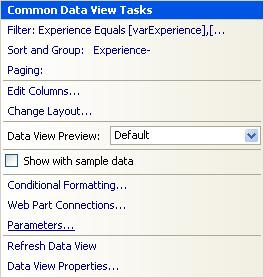
4. In the designer, select <WebPartPages:DataFormWebPart> and open the Common Data View Task window and choose Parameters.


5. Create a Parameter varTechnicalSkill and Select Query String from Parameter Source drop down and provide the Query String Variable which is skill in our case.

6. Again, open the Common Data View Task window and choose Filter this time.
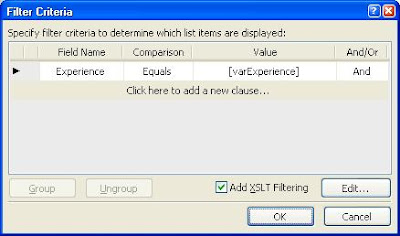
7. Select Add XSLT Filtering and hit Edit… button. Don’t get confuse with the varExperience. It’s just another variable and has absolutely nothing to do with our example.

8. In the Advance Condition window, in Edit the XPath expression provide the following formula for search:


[contains(@Skill,$varTechnicalSkill)]

Contains is a XSL function
@Skill is the column in the list
$varTechnicalSkill is the parameter which will get populated by the Query String skill.

Hit OK and then OK again.

9. If you view the source then you should be able to see the following XSL code added to the <XSL:tamplate>:

<xsl:variable name="Rows" select="/dsQueryResponse/Rows/Row[contains(@Tech_x0020_Skill_x0020__x0023_1,$varTechnicalSkill)]"/>

10. Save the SearchResults.aspx page and that’s it. We are good to use the search functionality.

Thursday, May 7, 2009

SharePoint: Accessing XSL variables in JavaScript

As we all know for a successful SharePoint project we need SharePoint knowledge, development skills, ability to google and prayers…lots of them.

During my current project I was developing a report which will generate a letter and the body of that letter will be generated by the data stored in Rich Text field in a SharePoint list. Now, in my case that body was a predefined template of the letter and I need to replace few keywords in the letter body using JavaScript. To achieve all this I need to access the Body variable (carrying the letter template) into the javaScript function to play with it.

Following are the steps to access I took to access XSL variable into my JavaScript function:


1. Open the website in SharePoint Designer.
2. Create an empty page Report.aspx.
3. Insert DataForm Webpart by selecting Insert-> SharePoint Controls -> DataView.
4. Hide all the columns and your WebPart should look like the following:

5. Also, you should be able to see the variable @Body in the source code window under <datafields> tag. Both are highlighted in the above image.
6. Now add a hidden field in the page under XSL tag and assign its value to @Body variable. Since, @Body variable is accessible in SharePoint generated XSL only. I added hidden field under one of the <xsl:template> tags.


7. Now you have got the value of @Body into the hidden field and you can access the field’s value easily with the following line of javascript, I called this line at the end of the HTML <body> tag:

var strBody = document.getElementById('txtBody').value;

8. Thats it.


Official SharePoint Documentation

I have recently contributed to the official SharePoint documentation for developement. Check it out here: https://docs.microsoft.com/en-us...