Top Menu

Showing posts with label Office 365. Show all posts

Thursday, May 25, 2017

SharePoint Online Page Load Time with JavaScript

Scenario:
We know that Microsoft don't recommend any kind of load testing against SharePoint Online pages as mentioned here but still customers want to know how much time it takes to load a page to get a feel of the end user experience.

Solution:
To find the page load times, browsers (Edge, Chrome & Firefox) now have built-in support of Navigation Timing which is a JavaScript API to measure the performance of a web page. This API is exposed via performance.timing object. Performance Timing API provides following events of for a web page, which we can use in JavaScript to get the different times of page load:


Here is an example of JavaScript that calculates the complete page load time, starting from the user pressing the Go button in the browser till the page renders completely:
Load Time: <div id="LoadTime"> </div>

<script type="text/javascript" >

window.onload = function(){
  setTimeout(function(){
    var t = performance.timing;
    document.getElementById('LoadTime').innerHTML = t.loadEventEnd - t.navigationStart;
  }, 0);
}

</script>
Note that above script is calculating difference between loadEvendEnd (very last event) and navigationStart (very first event) which is simulating the end user experience. The time will be displayed in milliseconds. 
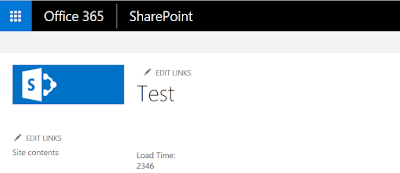


Similarly we can calculate the time between the request sent to server and response that came back from the server by calculating the difference between responseEnd and requestStart events. 

Tuesday, November 1, 2016

Microsoft Graph vs Office Graph

Microsoft introduced Office Graph a couple of months back which uses machine learning techniques to connect people to the relevant content, conversations and other people around them in Microsoft Cloud (Office 365). Now Microsoft recently introduced Microsoft Graph, which is a unified API endpoint, for accessing data, intelligence, and insights in the Microsoft cloud...and everybody is now confused :o). In this post I will try to explain the difference.

What is Graph?
According to wikipedia graph also known as social graph is described as:
The social graph in the Internet context is a graph that depicts personal relations of internet users. In short, it is model or representation of a social network, where the word graph has been taken from graph theory to emphasize that rigorous mathematical analysis will be applied as opposed to the relational representation in a social network.

Which means that how a person on internet is related or linked to another person and/or object(like document, image etc).This term was popularized by Facebook...for obvious reasons :o).

Office Graph:
The Office Graph uses machine learning algorithms to learn how a Office 365 user is connected to other users, content(documents etc) and conversations in a tenant and create a graph based on it in order to make suggestions.

If you go to Delve, the yellow section shows the information generated automatically based on Office Graph:

If we disable office graph by going into the SharePoint settings:
then Delve will not show the information generated by the office graph, it will only show basic about me information:

Microsoft Graph:
Microsoft Graph is an API with a single end point to access data, intelligence and insights from Microsoft Cloud (Office 365).

Let's understand it by an example, imagine a scenario where an app has to access a user's email attachment, upload it to SharePoint and then notify user's manager. Now that app needs to get authenticated first and then go to Outlook to grab emails and then go to SharePoint to upload files, which means dev have to have to work with three different set of APIs (Active Directory, Outlook and SharePoint). To overcome such scenarios Microsoft has introduced one API (Graph API) to talk to all Office 365 products. Microsoft Graph API is one API to rule them all.

Access Office Graph via MS Graph: Microsoft Graph API does not depend on Office Graph. However it can provides more functionality when Office Graph is enabled e.g. trends and related people etc. Click here to learn more.

Note: For SharePoint developers: MS Graph API is not here to kill CSOM and SharePoint REST API.

MS Graph API calls can be tested before writing the app with Graph Explorer: https://graph.microsoft.io/en-us/graph-explorer

Ref: https://en.wikipedia.org/wiki/Social_graph
Ref: https://dev.office.com/officegraph
Ref: https://graph.microsoft.io

Tuesday, October 25, 2016

Office365 Subsite Logo Redirection

Scenario:
Sub-site logo points to the sub-site's home page by default...and the requirement is to point it to the top level site's.

Solution:
We can not change Master Page in Office365/SharePoint Online site so we need to embed/inject the following JavaScript:

<script type="text/javascript" src="https://ajax.googleapis.com/ajax/libs/jquery/1.7.2/jquery.min.js"></script>

<script language="javascript" type="text/javascript">

$(document).ready(function () {

    $('#ctl00_onetidProjectPropertyTitleGraphic').attr('href','/sites/Portal');
    $('#ctl00_onetidProjectPropertyTitleGraphic').removeAttr('id');

});

</script>

Friday, December 4, 2015

SharePoint - Responsive Design (Framework)

You can go to my previous post where I have explained how to implement responsive design in a SharePoint site using Bootstrap from scratch. Now we you will quickly figure out that implementing responsive design from scratch will take a lot of time, effort and learning. So in order to save time we will use a pre-built framework developed by a team of awesome people.

Perform following steps for SharePoint Online sites:
  1. Download the WSP.
  2. Follow page 17-22 of the documentation.
  3. And the site will look like this:


    Desktop
    Mobile
  4. Now after the site has been made responsive and works all great. You can download the Master Page foundation-4.3.2-server.master and customize according to your own branding. See pages 23-25 of the documentation.


Monday, August 10, 2015

SharePoint 2013 - Content Type Hub

Content Type Hub is part of Managed Meta Data Service and was introduced into SharePoint to share the Content Types across the site collections and web applications. It was introduced in SharePoint 2010 and now its available in SharePoint 2013 and Office365.

I found this beautiful article to explain how to configure a Content Type Hub to share Content Type across other site collections and web applications:

http://sharepoint-community.net/profiles/blogs/understanding-content-type-hub-cth-in-sharepoint-2013

Note: Its already configured for you in Office365 under http://MyOffice365/sites/contentTypeHub.

Thursday, April 4, 2013

SharePoint Online - Change Master Page through CSOM

Scenario:
I had a requirement where one of our clients have a Team Site in SharePoint Online (Office 365) environment and the master page of that Team Site needs to be changed. 

Now the problem is _layouts/15/ChangeSiteMasterPage.aspx is not available in the Team Sites through Site Settings and Server Side code is not an option in SharePoint Online environment because Microsoft does not allow any server side deployment.

Solution:
The amazing Client-Side Object Model (JavaScript Object Model to be exact) saved the day. Here is the code:
<script type="text/javascript" src="/_layouts/15/sp.runtime.js"></script> 
<script type="text/javascript" src="/_layouts/15/sp.js"></script> 
<script type="text/javascript">
    function ChangeMasterPage() {

        var context;
        var web;
        var strMasterPageUrl = '/_catalogs/masterpage/my_custom.master';

        context = new SP.ClientContext.get_current();
        web = context.get_web();

        web.set_customMasterUrl(strMasterPageUrl);
        web.set_masterUrl(strMasterPageUrl);
        web.update();

        context.executeQueryAsync(function () {

            alert("Master Page has been set to \n" + strMasterPageUrl);

        }, function (sender, args) {

            alert("Error: " + args.get_message());

        });
    }

    ChangeMasterPage();
</script> ​​​​ ​​​​

Official SharePoint Documentation

I have recently contributed to the official SharePoint documentation for developement. Check it out here: https://docs.microsoft.com/en-us...