Top Menu

Showing posts with label SharePoint 2007. Show all posts

Monday, January 19, 2015

SharePoint 2007 - Hiding the Navigation

Scenario:
I had a small requirement to hide left and top navigation from a SharePoint 2007 Publishing Site on just one page (not the whole site).

Solution:
Two line javascrpit :o) in a hidden Content Editor Web Part, after identifying the IDs of the HTML elements which render the navigation.
<script type="text/javascript">

document.getElementById('onetIdTopNavBarContainer').style.display = 'none';
document.getElementById('LeftNavigationAreaCell').style.display = 'none';

</script>

Tuesday, October 14, 2014

SharePoint 2007 - Delete Global Navigation using PowerShell

Scenario:
Recently support team at my client found out that for some reason too many links (more than 1000) got created under a heading node in the Global Navigation in one of our SharePoint 2007 portals and it is making the whole site collection slow.

When I try to delete the group node from the UI, it gets deleted but the child nodes become the parent nodes. Funny....but not so funny when it is in production environment. So I wrote following the script in Powershell 2.0 for SharePoint 2007 to kill the parent node (and it will automatically delete all the child nodes under it).

Solution:
[System.Reflection.Assembly]::LoadWithPartialName(“Microsoft.Sharepoint”)

$siteURL = "https://sharepoint2007portal"
$spSite = new-object Microsoft.Sharepoint.SPSite($siteUrl)
$spWeb = $spSite.RootWeb

Foreach($node in ($spWeb.Navigation.TopNavigationBar))
{
    
    if ($node.Title -eq "MyHeading")
    {
        write-host "Node: " $node.Title

        //this will delete the node and its child
        $node.Delete() 

        write-host "Deleted successfully."
    }
    
}
$spWeb.Dispose() 

write-host "Done."

Wednesday, May 21, 2014

SharePoint 2013 - Audit Log

Scenario:
I had a business requirement to track user activities inside a SharePoint site and guess what? SharePoint have OTB functionality to track who is doing what in the whole site collection. For example: User A is editing documents, User B is downloading some documents and User C is just viewing the content without touching them. This functionality is called Audit Log Reporting.

Configure Audit Log Settings:
  1. Go to Site Settings and under Site Collection Administration section, select Site collection audit settings.
  2. Select the events that you want to capture.
View Audit Log Reports:
  1. Go to Site Collection Administration section and select Audit log reports.
  2. Select the report that you want to view. Make sure you have selected the corresponding event in the above steps.
  3. You will be asked to select a document library where the report will be generated as an Excel document.
Note: In SharePoint 2007, you might not see the option of Audit log reports on Site Settings page. You have to go to the Site collection features and enable the Reporting feature to make the link visible.

Monday, January 27, 2014

Publishing SSRS 2008 Reports in SharePoint

In this post, I will talk about publishing and viewing SSRS 2008 reports in SharePoint 2007.

Pre Req: You should have at least one report ready to publish. I have explained how to build a report by fetching data from a SharePoint list in this post.

Following are the configuration steps you need on SQL side as well as on SharePoint side:
  1. Launch Reporting Service Configuration Manager from Start menu.
  2. Go to Database Setup tab, change Server Mode to SharePoint Integrated. It will ask you to create a new SSRS database. Go ahead and create it.
  3. Go to SharePoint Integration tab and then launch SharePoint 2007 Central Admin.
  4. In SharePoint Central Admin, go to Applications -> Reporting Services section
  5. Under Reporting Services, select Manage integration settings and provide Reporting Server URL (http://ServerName/ReportServer) and Authentication Type as Windows Authentication in dev box (Trusted Connection in production environment).
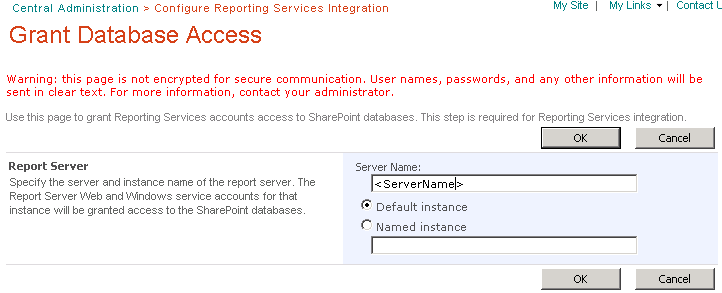
  6. Under Reporting Services, select Grant database access and provide Server Name (with farm login credentials)
  7. Go to the Site Collection features of SharePoint site collection where you want to publish/run the reports and activate Report Server Integration Feature feature.
  8. Create a Reporting Document Library and upload report file RDL and Datasource file RSDS in it. This is the document library where we will store our reports and datasources.

    You can also publish the reports and data source directly from BI Studio by these steps:
    http://technet.microsoft.com/en-us/library/bb326285
  9. Create a new blank web part page and add SQL Server Reporting Services Report Viewer web part on it. Then configure the web part properties to point to the RDL file in the document library.
  10. Save and publish the page and you should see the report in the Report Viewer web part...BOOM.

Friday, January 24, 2014

Displaying SharePoint List Data in SSRS 2008 Report

In this post, I am going to explain how to fetch data from SharePoint 2007 list and then display it in SQL Server Reporting Services (SSRS) 2008 to build a report or a dashboard.

Pre Requisite: This article assumes that following components are installed on the Windows Server:
  1. SharePoint 2007
  2. SQL Server 2005
  3. Visual Studio 2005/2008
  4. SQL Server Reporting Service 2008
With the installation of SSRS 2008, following two virtual directories will be created under default website in IIS:
  1. Reporting Server: http://localhost/ReportServer
  2. Reports Manager: http://localhost/Reports (We will be using this)
You can get configuration information about SSRS by launching Reporting Services Configuration Manager from Start menu.

Let's create a report now.
  1. Launch SQL Server Business Intelligence Development Studio from Start menu.
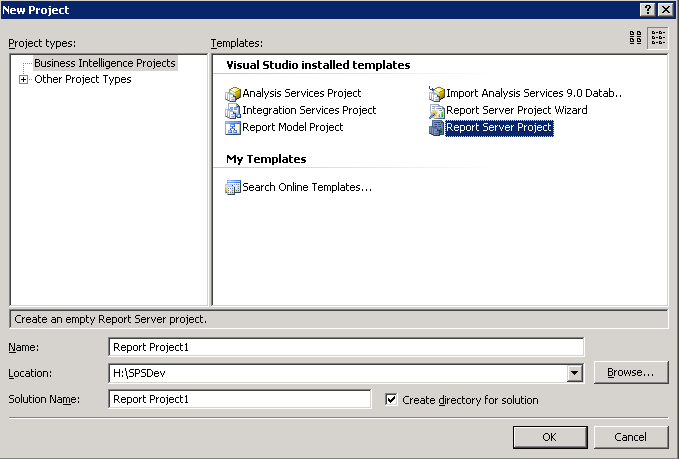
  2. Select File -> New -> Project and select Report Server Project.
  3. Once the project is created, you will see two folders: Shared Data Sources and Reports. I don't need to explain these two folders...right? :o).
  4. Create Data Source: In this step we have to define that our data source is a SharePoint 2007 List and we will connect to that list using SharePoint web services.

    Add New Data Source by r-clicking the Create Data Sources folder and specify the name as SharePointDataSource, type as XML and Connection string as https://<sharepointsite>/_vti_bin/lists.asmx
  5. Create Report: We have a custom list List9 in our SharePoint Site which we want to show in the report. Here is how the data in List9 looks like:
     
  6. R-click Reports folder and select Add New Report. This will launch Report Wizard. In the Report Wizard specify the data source (SharePointDataSource) created in the step 4 here.

    In the next screen provide the Query String specifying the List Name and columns etc.

    Here is a sample XML:
    <Query>
      <SoapAction>http://schemas.microsoft.com/sharepoint/soap/GetListItems</SoapAction>
      <Method Namespace="http://schemas.microsoft.com/sharepoint/soap/" Name="GetListItems">
          <Parameters>
             <Parameter Name="listName">
                <DefaultValue>List9</DefaultValue>
             </Parameter>
             <Parameter Name="viewName">
                <DefaultValue></DefaultValue>
                <ViewFields>
                   <FieldRef Name="Title" />
                   <FieldRef Name="Choice" />
                </ViewFields>
             </Parameter>
          </Parameters>
       </Method>
       <ElementPath IgnoreNamespaces="True">*</ElementPath>
    </Query>
    
    In the next screen choose Tabular

    In the next screen, under Details add ows_Title and ows_Choice columns.

    In the next screen select the Table Style


    hit last Next and then Finish.


    You will see your first report as follow


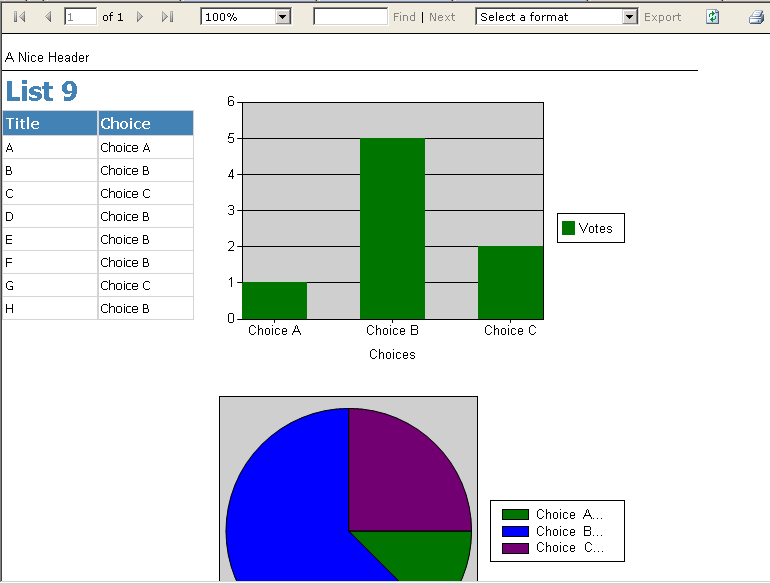
    Hit Preview tab to run the report and see the data from List9 list from SharePoint.
    Now is the time to make report pretty e.g. change title, add graphs or add additional columns.

  7. Publish: Lets publish the report on the Reporting Manager/Server.

    Go to the project folder and upload Report1.rpt and SharePointDataSource.rds files to http://localhost/Reports. I have renamed my datasource file to ds_SPList on the Reporting Server.


    Click Report1 and you should see the data from SharePoint List 9.

Wednesday, March 6, 2013

SharePoint 2007 - Top 100 Versioned Documents via SQL Query

In our local SharePoint environment the Content Database's size was going out of control and we have to identify the documents/items with the highest number of versions so that we can delete them and apply some sort of versioning limit to the document libraries.

I came across a treasure of SQL Queries at this post where Syed Adnan Ahmed has already written few excellent queries to analyze the CDB. My fav is to view the Top 100 versioned documents. 
SELECT TOP 100
Webs.FullUrl As SiteUrl, 
Webs.Title 'Document/List Library Title', 
DirName + '/' + LeafName AS 'Document Name',
COUNT(Docversions.version)AS 'Total Version',
SUM(CAST((CAST(CAST(Docversions.Size as decimal(10,2))/1024 As 
   decimal(10,2))/1024) AS Decimal(10,2)) )  AS  'Total Document Size (MB)',
CAST((CAST(CAST(AVG(Docversions.Size) as decimal(10,2))/1024 As 
   decimal(10,2))/1024) AS Decimal(10,2))   AS  'Avg Document Size (MB)'
FROM Docs INNER JOIN DocVersions ON Docs.Id = DocVersions.Id 
   INNER JOIN Webs On Docs.WebId = Webs.Id
INNER JOIN Sites ON Webs.SiteId = SItes.Id
WHERE
Docs.Type <> 1 
AND (LeafName NOT LIKE '%.stp')  
AND (LeafName NOT LIKE '%.aspx')  
AND (LeafName NOT LIKE '%.xfp') 
AND (LeafName NOT LIKE '%.dwp') 
AND (LeafName NOT LIKE '%template%') 
AND (LeafName NOT LIKE '%.inf') 
AND (LeafName NOT LIKE '%.css') 
GROUP BY Webs.FullUrl, Webs.Title, DirName + '/' + LeafName
ORDER BY 'Total Version' desc, 'Total Document Size (MB)' desc

Wednesday, September 19, 2012

JQuery: Batch update the list items via Lists.asmx

Quick JQuery script to batch update the list items via Lists.asmx.

I have two lists Projects(Title, ProjectStatus) and Teams(Title, Project, ProjectStatus). Team.Project is a lookup column from Projects.Title and I want to update Teams.ProjectStatus when Projects.ProjectStatus is updated in the Projects list via EditForm.aspx. Now we can link two columns from projects list into the Teams list but can not connect them together in the Teams list, so following script was a great help. It batch updates the Teams.ProjectStatus once Project.ProjectStatus is updated.

Thanks to the this post I found 100% functionality ready to go.


<script type="text/javascript" src="/Scripts/jquery-1.8.1.min.js"></script>

<script type="text/javascript">

var strProject = "";
var strProjectStatus = "";

function PreSaveItem()
{
 strProject = document.getElementById('ctl00_m_g_f2d95e24_befb_49d2_b15f_823d71c9c758_ctl00_ctl04_ctl00_ctl00_ctl00_ctl04_ctl00_ctl00_TextField').value;
 strProjectStatus = document.getElementById('ctl00_m_g_f2d95e24_befb_49d2_b15f_823d71c9c758_ctl00_ctl04_ctl01_ctl00_ctl00_ctl04_ctl00_DropDownChoice').value;
 
 GetProjectID();
  
 return true;
}

function GetProjectID(){

var soapEnv = "<soap:Envelope xmlns:soap='http://schemas.xmlsoap.org/soap/envelope/'> \
<soap:Body> \
    <GetListItems xmlns='http://schemas.microsoft.com/sharepoint/soap/'> \
        <listName>Teams</listName> \
        <query><Query><Where><Eq><FieldRef Name='Project'/><Value Type='Text'>"+ strProject +"</Value> </Eq></Where></Query></query> \
        <viewFields> \
            <ViewFields> \
                <FieldRef Name='ID' /> \
                <FieldRef Name='Title' /> \
            </ViewFields> \
        </viewFields> \
        <rowLimit>99999</rowLimit> \
        <queryOptions xmlns:SOAPSDK9='http://schemas.microsoft.com/sharepoint/soap/' ><QueryOptions/> \
        </queryOptions> \
    </GetListItems> \
</soap:Body> \
</soap:Envelope>";

jQuery.ajax({
url: "/itsglobal/_vti_bin/lists.asmx",
type: "POST",
dataType: "xml",
data: soapEnv,
complete: ResultMethod,
contentType: "text/xml; charset=\"utf-8\""
});

}

function ResultMethod(xData, status) 
{

    if (status=="success")
    {
        var oldbatch = "";
        $(xData.responseXML).find("z\\:row").each(function() 
        {
            oldbatch = AddTobatch(oldbatch, $(this).attr("ows_ID"));
        });
        
        UpdateTeamItem(oldbatch);
    }

}

function AddTobatch(oldbatch, itemId)
{

//Specify the batch query
var _batch = "<Method ID='1' Cmd='Update'><Field Name='ID'>" + itemId +"</Field><Field Name='ProjectStatus'>"+ strProjectStatus +"</Field></Method>";
oldbatch = oldbatch + _batch;

return oldbatch;
}

function UpdateTeamItem(batch) 
{
var soapEnv = "<?xml version=\'1.0\' encoding=\'utf-8\'?> \
<soap:Envelope xmlns:xsi=\'http://www.w3.org/2001/XMLSchema-instance\' \
xmlns:xsd=\'http://www.w3.org/2001/XMLSchema\' \
xmlns:soap='http://schemas.xmlsoap.org/soap/envelope/\'> \
<soap:Body> \
<UpdateListItems xmlns='http://schemas.microsoft.com/sharepoint/soap/'> \
<listName>Teams</listName> \
<updates> \
<Batch OnError='Continue'>" + batch + "</Batch> \
</updates> \
</UpdateListItems> \
</soap:Body> \
</soap:Envelope>";

$.ajax({
url: "/itsglobal/_vti_bin/lists.asmx",
beforeSend: function(xhr) { xhr.setRequestHeader("SOAPAction", "http://schemas.microsoft.com/sharepoint/soap/UpdateListItems");
},
type: "POST",
dataType: "xml",
data: soapEnv,
complete: updateResult,
contentType: "text/xml; charset=\"utf-8\""

});
}

function updateResult(xData, status) {
if (status != 'success' )
    alert("Update Project Status in Teams library failed");
}


</script>

JQuery: Read list Item via Lists.asmx

Following JQuery script is to get list items using Lists.asmx web service in MOSS 2007:
<script type="text/javascript" src="/Scripts/jquery-1.8.1.min.js"></script>
<script type="text/javascript">

//This function will call when OK button will be pressed on a List's default form (e.g. EditItem.aspx).

function PreSaveItem()
{
 var project = "Project A";
 
 GetProjectID(project);
 
 return true;
}

function GetProjectID(project){

var soapEnv = "<soap:Envelope xmlns:soap='http://schemas.xmlsoap.org/soap/envelope/'> \
<soap:Body> \
    <GetListItems xmlns='http://schemas.microsoft.com/sharepoint/soap/'> \
        <listName>Teams</listName> \
        <query><Query><Where><Eq><FieldRef Name='Project'/><Value Type='Text'>"+ project +"</Value> </Eq></Where></Query></query> \
        <viewFields> \
            <ViewFields> \
                <FieldRef Name='ID' /> \
                <FieldRef Name='Title' /> \
            </ViewFields> \
        </viewFields> \
        <rowLimit>99999</rowLimit> \
        <queryOptions xmlns:SOAPSDK9='http://schemas.microsoft.com/sharepoint/soap/' ><QueryOptions/> \
        </queryOptions> \
    </GetListItems> \
</soap:Body> \
</soap:Envelope>";

jQuery.ajax({
url: "/itsglobal/_vti_bin/lists.asmx",
type: "POST",
dataType: "xml",
data: soapEnv,
complete: ResultMethod,
contentType: "text/xml; charset=\"utf-8\""
});

}

function ResultMethod(xData, status) 
{

    if (status=="success")
    {
        alert(status);
        $(xData.responseXML).find("z\\:row").each(function() 
        {
            alert($(this).attr("ows_ID"));
        });
    }

}

</script>
I have copied this script from the internet and have tweaked it a bit to work with JQuery 1.8 version.

Tuesday, August 28, 2012

SharePoint 2007 - Save RSS Feed into List using JQuery

The idea is to fetch the RSS feed from multiple sources and then save into the SharePoint 2007 List so that we can perform search, archive the RSS news, display data nicely in Data View etc etc.


The following JQuery script will fetch the RSS feed from multiple sources and then save the data into the SharePoint 2007 list via lists.asmx:
<script src="/Scripts/jquery-1.8.0.min.js" type="text/javascript"></script>


<script type="text/javascript">
  
    function LoadFeed() 
    {
        var varFeedURL = new Array();
            varFeedURL[0] = "http://feeds.bbci.co.uk/news/business/rss.xml";
            varFeedURL[1] = "http://www.ft.com/rss/home/uk";
            varFeedURL[2] = "http://www.ft.com/rss/home/us";

            for (i = 0; i < varFeedURL.length; i++)
            {

                $.get(varFeedURL[i], function(data) {
                    var $xml = $(data);
                    $xml.find("item").each(function() {
                        var $this = $(this),
                            item = {
                                title: $this.find("title").text(),
                                link: $this.find("link").text(),
                                description: $this.find("description").text(),
                                pubDate: $this.find("pubDate").text()
                        }
                        
                        
                        //Show only Today's Items
                        var a = new Date(item.pubDate);
                        var b = new Date(); //Today's Date
                        
                        var msDateA = Date.UTC(a.getFullYear(), a.getMonth()+1, a.getDate());
                           var msDateB = Date.UTC(b.getFullYear(), b.getMonth()+1, b.getDate());
                                                   
                        if (parseFloat(msDateA) == parseFloat(msDateB))
                        {
                        
                            var content = document.getElementById('content');
                            content.appendChild(document.createTextNode(item.title)); 
                            content.appendChild(document.createElement('br'));
                            content.appendChild(document.createTextNode(item.description));
                            content.appendChild(document.createElement('br'));
                            content.appendChild(document.createTextNode(item.link));
                            content.appendChild(document.createElement('br'));
                            content.appendChild(document.createElement('hr'));
                            
                            CreateNewItem(item.title, item.description, item.link);
                        }
                        
                    });
                });
            }
        alert('Done');
    }        
        
        
        function CreateNewItem(varTitle, varDescription, varLink) 
        {
                    var batch =
                        "<Batch OnError=\"Continue\"> \
                            <Method ID=\"1\" Cmd=\"New\"> \
                                <Field Name=\"Title\">" + varTitle + "</Field> \
                                <Field Name=\"Description\">" + varDescription + "</Field> \
                                <Field Name=\"Link\">" + varLink + "</Field> \
                            </Method> \
                        </Batch>";
                
                    var soapEnv =
                        "<?xml version=\"1.0\" encoding=\"utf-8\"?> \
                        <soap:Envelope xmlns:xsi=\"http://www.w3.org/2001/XMLSchema-instance\" \
                            xmlns:xsd=\"http://www.w3.org/2001/XMLSchema\" \
                            xmlns:soap=\"http://schemas.xmlsoap.org/soap/envelope/\"> \
                          <soap:Body> \
                            <UpdateListItems xmlns=\"http://schemas.microsoft.com/sharepoint/soap/\"> \
                              <listName>RSSData</listName> \
                              <updates> \
                                " + batch + "</updates> \
                            </UpdateListItems> \
                          </soap:Body> \
                        </soap:Envelope>";
                
                    $.ajax({
                        url: "http://portalstg.amr.kworld.kpmg.com/_vti_bin/lists.asmx",
                        beforeSend: function(xhr) {
                            xhr.setRequestHeader("SOAPAction",
                            "http://schemas.microsoft.com/sharepoint/soap/UpdateListItems");
                        },
                        type: "POST",
                        dataType: "xml",
                        data: soapEnv,
                        complete: processResult,
                        contentType: "text/xml; charset=utf-8"
                    });
                }
                
                function processResult(xData, status) {
                    //alert(status);
                }
        
  
    </script>

<input id="btnGo" onclick="LoadFeed()" type="button" value="Get RSS Data" />


Ref: http://weblogs.asp.net/jan/archive/2009/04/10/creating-list-items-with-jquery-and-the-sharepoint-web-services.aspx


Monday, April 2, 2012

Migrating SharePoint 2007 site to SharePoint 2010

Recently, I had to come up with a strategy to migrate our company's internal SharePoint based website from MOSS 2007 to SharePoint 2010 platform and the following MSDN article made my life so much easy:

URL: http://technet.microsoft.com/hi-in/library/cc263299(en-us).aspx

There were no custom developed components however there were many major customizations in different sections of the site collection, so we planned to followed the below steps:

  1. Prepare the new SharePoint 2010 Farm/Server.
  2. Detach the Content Database from the SharePoint 2007 web application.
  3. Move the Content Database to the new SQL Server.
  4. Create a new Web Application in SharePoint 2010.
  5. Attach the Content Database to the new Web Application.
  6. Verify data and functionality.
  7. Some customizations might/will stop working so you need to fix them or in some cases re-do them.
In short I have to follow the same strategy which I have used for migrating the site from SharePoint 2003 to SharePoint 2007.

Thursday, March 1, 2012

Get SharePoint List Views using Web Services

Following is an example of displaying Views of a list in a DataGrid Control from SharePoint 2007 using Views.asmx and Lists.asmx Web Services.
public class SharePointManagement
{
    ViewsService.Views objViewsService = new SPViewsService.ViewsService.Views();
    ListsService.Lists objListsService = new SPViewsService.ListsService.Lists();
    string strSiteURL = "http://mySharepointServer:1100";
    string strUserName = "username";
    string strDomain = "us";
    string strPassword = "password";
    string strListName = "Announcements";
    string strQuery = "";
    string strViewFields = "";
    string strQueryOptions = "";

    ArrayList lstViewID = new ArrayList();

    public void GetViewQuery(string strListName)
    {
        try
        {
            #region Source URL
            //get the lists for the Source URL
            this.objViewsService.Url = this.strSiteURL.Trim('/') + "/_vti_bin/views.asmx";

            //get the domain
            if (this.strUserName.IndexOf("\\") > 0)
            {
                this.strDomain = this.strUserName.Split("\\".ToCharArray())[0];
                this.strUserName = this.strUserName.Split("\\".ToCharArray())[1];
            }

            this.objViewsService.Credentials = new System.Net.NetworkCredential(this.strUserName, this.strPassword, this.strDomain);


            #endregion

            System.Xml.XmlNode xnAllView = this.objViewsService.GetViewCollection(strListName);
            foreach (System.Xml.XmlNode node in xnAllView)
            {
                if (node.Name == "View")
                {
                    this.lstViewID.Add(node.Attributes["Name"].Value);
                }
            }

            //Get the First View
            System.Xml.XmlNode xnViewData = this.objViewsService.GetView(this.strListName, lstViewID[0].ToString());

            foreach (System.Xml.XmlNode node in xnViewData)
            {
                if (node.Name == "Query")
                {
                    this.strQuery = node.InnerXml;
                }
                if (node.Name == "ViewFields")
                {
                    this.strViewFields = node.InnerXml;
                }
            }

        }
        catch (System.Exception exp)
        {
            MessageBox.Show(exp.ToString());
        }
    }

    public void GetViewData()
    {
        DataSet ds = new DataSet();
        DataTable dt = new DataTable();

        try
        {
            #region Source URL
            //get the lists for the Source URL
            this.objListsService.Url = this.strSiteURL.Trim('/') + "/_vti_bin/lists.asmx";

            //get the domain
            if (this.strUserName.IndexOf("\\") > 0)
            {
                this.strDomain = this.strUserName.Split("\\".ToCharArray())[0];
                this.strUserName = this.strUserName.Split("\\".ToCharArray())[1];
            }

            this.objListsService.Credentials = new System.Net.NetworkCredential(this.strUserName, this.strPassword, this.strDomain);


            #endregion

            //get the Data from the List
            System.Xml.XmlDocument xdListData = new System.Xml.XmlDocument();
            System.Xml.XmlNode xnQuery = xdListData.CreateElement("Query");
            System.Xml.XmlNode xnViewFields = xdListData.CreateElement("ViewFields");
            System.Xml.XmlNode xnQueryOptions = xdListData.CreateElement("QueryOptions");

            //*Use CAML query*/ 
            xnQuery.InnerXml = this.strQuery;
            xnViewFields.InnerXml = this.strViewFields;
            xnQueryOptions.InnerXml = this.strQueryOptions;

            System.Xml.XmlNode xnListData = this.objListsService.GetListItems(this.strListName, null, xnQuery, xnViewFields, null, xnQueryOptions, null);


            StringReader sr = new StringReader(xnListData.OuterXml.Replace("ows_", ""));
            ds.ReadXml(sr);

            return dt;
        }
        catch (System.Exception exp)
        {
            MessageBox.Show(exp.ToString());
            return dt;
        }
    }
}

Wednesday, February 22, 2012

Query a List via Lists.asmx

A quick .NET function to Query a MOSS List via Lists.asmx web service. I use this function time to time, so thought to post here.
Note: I already have posted similer code in my previous post but this is the full version.

using System;
using System.Collections.Generic;
using System.Text;
using System.Configuration;
using System.Xml;
using System.IO;

namespace ELLP_Content
{
    class Program
    {
        static void Main(string[] args)
        {
            SharePointManagement objSPManagement = new SharePointManagement();
            objSPManagement.GetListContent();
        }
    }

    public class SharePointManagement
    {
        MOSSListsService.Lists objListService = new ELLP_Content.MOSSListsService.Lists();

        public void GetListContent()
        {
            try
            {
                string strSiteURL = ConfigurationSettings.AppSettings["SiteURL"];
                string strUserName = ConfigurationSettings.AppSettings["Login"];
                string strDomain = string.Empty;
                string strPassword = ConfigurationSettings.AppSettings["Password"];
                string strListName = ConfigurationSettings.AppSettings["List"];

                #region Source URL
                //get the lists for the Source URL
                objListService.Url = strSiteURL.Trim('/') + "/_vti_bin/lists.asmx";

                //get the domain
                if (strUserName.IndexOf("\\") > 0)
                {
                    strDomain = strUserName.Split("\\".ToCharArray())[0];
                    strUserName = strUserName.Split("\\".ToCharArray())[1];
                }

                objListService.Credentials = new System.Net.NetworkCredential(strUserName, strPassword, strDomain);

                #endregion


                //get the Data from the List
                System.Xml.XmlDocument xdListData = new System.Xml.XmlDocument();
                System.Xml.XmlNode xnQuery = xdListData.CreateElement("Query");
                System.Xml.XmlNode xnViewFields = xdListData.CreateElement("ViewFields");
                System.Xml.XmlNode xnQueryOptions = xdListData.CreateElement("QueryOptions");

                //*Use CAML query*/ 
                xnQuery.InnerXml = "<Where><Neq><FieldRef Name=\"Exclude_x0020_From_x0020_Country\" /><Value Type=\"Boolean\">0</Value></Neq></Where>";

                xnQueryOptions.InnerXml = "<IncludeMandatoryColumns>FALSE</IncludeMandatoryColumns><DateInUtc>TRUE</DateInUtc>";

                System.Xml.XmlNode xnListData = objListService.GetListItems(strListName, null, xnQuery, xnViewFields, null, xnQueryOptions, null);


                foreach (System.Xml.XmlNode node in xnListData)
                {
                    if (node.Name == "rs:data")
                    {
                        for (int i = 0; i < node.ChildNodes.Count; i++)
                        {
                            if (node.ChildNodes[i].Name == "z:row")
                            {
                                Console.WriteLine(node.ChildNodes[i].Attributes["ows_Title"].Value);
                            }
                        }
                    }
                }

                Console.ReadKey();
            }
            catch (System.Web.Services.Protocols.SoapException ex)
            {
                this.WriteLog("Message:\n" + ex.Message + "\nDetail:\n" + ex.Detail.InnerText + "\nStackTrace:\n" + ex.StackTrace);
            }
        }

        private void WriteLog(string strLine)
        {

            string FilePath = Path.Combine(AppDomain.CurrentDomain.BaseDirectory, ConfigurationSettings.AppSettings["InputLog"]);
            StreamWriter objFile;

            if (!File.Exists(FilePath))
            {
                objFile = new StreamWriter(FilePath);
            }
            else
            {
                objFile = File.AppendText(FilePath);
            }

            objFile.WriteLine(DateTime.Now + "\\t" + strLine);
            objFile.WriteLine();
            objFile.Close();

        }
    }
}

SharePoint Navigation List Limitation

Today, one of the developers from Ireland team faced a problem while adding a link to the MOSS Navigation list. The item was simply not showing up on the left navigation. After doing some research we found out that in SharePoint 2007 only 50 items can be added to the navigation list.

Wednesday, January 19, 2011

Silverlight Application for SharePoint 2007


The goal of this post is to guide the .NET developers to write a basic Silverlight 3 application using Visual Studio 2010 and then deploying it to SharePoint 2007. Trust me its pretty easy :).

Development with Visual Studio 2010
Following are the steps to develop a simple Silverlight 3 application using Visual Studio 2010:

  1. Launch Visual Studio 2010

  2. Select File -> New -> Project -> Silverlight Application and hit Ok.


  3. Uncheck Host the Silverlight Application in a new Web site and select OK. We don’t want to host our Silverlight application in a ASP.NET Web application rather we will host it in a simple HTML page. This HTML Page will get created by the project.

  4. Now you are ready to do the development on MainPage.xaml.

  5. Drop a Textbox(txtMessage) and a Button(btnGo) on MainPage.xaml from the Toolbox on the left.


  6. Double click on the button to get it’s click event handler and paste following code there:

  7. namespace SilverlightApp  
    {  
    public partial class MainPage : UserControl  
    {  
        public MainPage()  
        {  
            InitializeComponent();  
        }  
        private void btnGo_Click(object sender, RoutedEventArgs e)  
        {  
            MessageBox.Show(this.txtMessage.Text);  
        }  
    }  
    }  
    

  8. Go to bin folder and you will see a HTML file (In my case its SilverlightAppTestPage.html). Launch that HTML file and it should display your Silverlight application. Clicking the Go button should display the text entered in the Textbox.


Note: When Silverlight application is compiled, Visual Studio generates a XAP file (compiled silverlight application) which runs in a silverlight enabled browser. HTML page contains the object tag to load the Silverlight control which runs the Silverlight application.

Deployment to SharePoint 2010
Following are the steps to deploy the Silverlight application in to a SharePoint 2007 site:

  1. Goto a SharePoint portal.

  2. Upload the Silverlight.xap file in a document library.

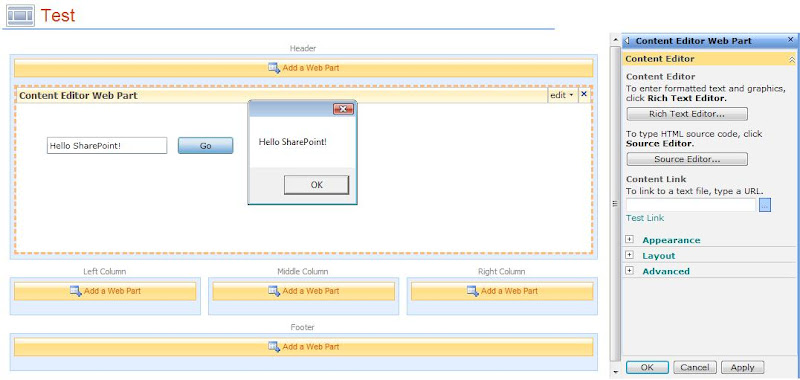
  3. Create a test ASPX page and add a Content Editor Web Part on it.

  4. Paste following HTML object code in the ContentEditor Web Part:

  5. <object type="application/x-silverlight-2" width="600" height="200">
        <param name="source" value="SilverlightApp.xap"/>
        <param name="minRuntimeVersion" value="3.0.40818.0" />
        <param name="background" value="white" />
    </object>
    <iframe id="_sl_historyFrame" style="height:0px;width:0px;border:0px"></iframe>
    

  6. Make sure to change the parth of the XAP file from the document library.

  7. Exit the edit mode.

  8. The Silverlight application should be displayed in the test page.


Thanks for reading :).

Thursday, July 8, 2010

SharePoint WebPart Custom Properties


Add the following piece of code (to create the custom property Password for your custom WebPart) in your WebPart class. Now the property will get displayed under Parameters section in the Property panel of the WebPart as displayed in the screenshot below.


private string _strPassword;


[Browsable(true),
Category("Parameters"),
DefaultValue(""),
WebBrowsable(true),
Personalizable(PersonalizationScope.Shared),
WebDisplayName("Password"),
Description("Network Password")]
public string strPassword
{
    get
    {
        return _strPassword;
    }
    set
    {
        _strPassword = value;
    }
}

Now Access strPassword anywhere in the code to access the value provided by the user.


Friday, June 4, 2010

SharePoint 2007 Web Service: Get Items

Use lists.asmx to get the items through a desktop application

Below is the C# function to call the lists.asmx MOSS Web Service to get list items from a list/document library.
Add reference to lists.asmx to your project and use the following code:


private void GetItems(string strListName)
{

try
{
    #region Connect to URL

    this.m_objWSSListService.Url = this.cmbURL.Text.Trim('/') + "/_vti_bin/lists.asmx";

    string sDomain = string.Empty;
    string sUserName = this.txtLogin.Text.Trim();
    if (sUserName.IndexOf("\\") > 0)
    {
        sDomain = sUserName.Split("\\".ToCharArray())[0];
        sUserName = sUserName.Split("\\".ToCharArray())[1];
    }

    this.m_objWSSListService.Credentials = new System.Net.NetworkCredential(sUserName, this.txtPassword.Text.Trim(), sDomain);

    #endregion

    string sListName = strListName;
    string SourceDocumentURL = "";
    string strTempLocation = "C:\\Temp\\";
    string strFileName = "";

    System.Xml.XmlNode xnListSchema = m_objWSSListService.GetList(sListName);

    //get the Data from the List
    System.Xml.XmlDocument xdListData = new System.Xml.XmlDocument();
    System.Xml.XmlNode xnQuery = xdListData.CreateElement("Query");
    System.Xml.XmlNode xnViewFields = xdListData.CreateElement("ViewFields");
    System.Xml.XmlNode xnQueryOptions = xdListData.CreateElement("QueryOptions");

    System.Xml.XmlNode xnListData = m_objWSSListService.GetListItems(sListName, null, xnQuery, xnViewFields, null, xnQueryOptions);


    if (!Directory.Exists(strTempLocation))
    {
        Directory.CreateDirectory(strTempLocation);
    }

    foreach (XmlNode outerNode in xnListData.ChildNodes)
    {
        if (outerNode.NodeType.Equals(System.Xml.XmlNodeType.Element))
        {
            foreach (XmlNode node in outerNode.ChildNodes)
            {
                if (node.NodeType.Equals(System.Xml.XmlNodeType.Element))
                {
                    MessageBox.Show(node.Attributes.GetNamedItem("ows_Title").InnerText);
                }
            }
        }
    }

}
catch (System.Exception ex)
{

    this.WriteLog(ex.ToString());
}

}

Wednesday, June 2, 2010

SharePoint 2007 Web Service: Create Folder in Document Library

Use lists.asmx to create folder in a document library through a desktop application

Below is the C# function to call the lists.asmx MOSS Web Service to create folders in a document library.
Add reference to lists.asmx to your project and use the following code:


private void CreateFolder(string strPath, string strListName)
{

try
{
#region Connect to URL

this.m_objWSSListService.Url = this.cmbURL.Text.Trim('/') + "/_vti_bin/lists.asmx";

string sDomain = string.Empty;
string sUserName = this.txtLogin.Text.Trim();
if (sUserName.IndexOf("\\") > 0)
{
    sDomain = sUserName.Split("\\".ToCharArray())[0];
    sUserName = sUserName.Split("\\".ToCharArray())[1];
}

this.m_objWSSListService.Credentials = new System.Net.NetworkCredential(sUserName, this.txtPassword.Text.Trim(), sDomain);

#endregion

System.Xml.XmlDocument xmlDoc = new System.Xml.XmlDocument();
System.Xml.XmlElement Batch = xmlDoc.CreateElement("Batch");

Batch.SetAttribute("OnError", "Continue");
Batch.SetAttribute("ListVersion", "0");
string strBatch = "<method id="1" cmd="New">";
strBatch = strBatch + "<field name="ID">New</field>";
strBatch = strBatch + "<field name="FSObjType">1</field>";
strBatch = strBatch + "<field name="FileRef">" + strPath + "</field></method>";

Batch.InnerXml = strBatch;
XmlNode ndReturn = this.m_objWSSListService.UpdateListItems(strListName, Batch);
if (ndReturn.FirstChild.FirstChild.InnerText != "0x00000000")
{
    this.WriteLog(ndReturn.InnerText);
}

this.WriteLog("Create Operation - List:" + strListName + " - Folder: " + strPath);


}
catch (System.Exception ex)
{
this.WriteLog(ex.ToString());
}

}

Official SharePoint Documentation

I have recently contributed to the official SharePoint documentation for developement. Check it out here: https://docs.microsoft.com/en-us...