In this post I will explain how to quickly develop and deploy SharePoint List Events.
1. Create a Class Library Project.
2. Add reference to SharePoint DLL.
3. Inherit your class with SPItemEventReceiver
4. Override ItemAdded(SPItemEventProperties properties) function
5. Your code should look like:
using System;
using System.Collections.Generic;
using System.Linq;
using System.Text;
using Microsoft.SharePoint;

namespace SPListEvents
{
    public class CandidateListHandler: SPItemEventReceiver
    {
        public override void ItemAdded(SPItemEventProperties properties)
        {
            try
            {
                SPListItem item = properties.ListItem;
                item["Status"] = "Added";
                item["Company"] = "Company1";
                item.Update();

            }
            catch (Exception exp)
            {
                  //do something with exp
            }
            finally
            {
                base.ItemAdded(properties);
            }
        }
    }
}
Above code will get fired on the associated list, when a new item will be created. Pretty easy hah.
6. Sign your dll by selecting Project -> Properties -> Signing Tab and should look like:

7. Compile
8. Deploy the SPListEvents.dll to GAC (c:\windows\assembly)
Note down the Public Key Token for the installed DLL to use it in the below deployment code e.g. PublicKeyToken=cd22d2b1bc79915b
[Assign the Event Handler to a specific list]
9. Create a Windows application
10. Add a button and write following code on its click event.
using System;
using System.Collections.Generic;
using System.ComponentModel;
using System.Data;
using System.Drawing;
using System.Linq;
using System.Text;
using System.Windows.Forms;
using Microsoft.SharePoint;

namespace InstallSPEventHandler
{
    public partial class Form1 : Form
    {
        public Form1()
        {
            InitializeComponent();
        }

        private void button1_Click(object sender, EventArgs e)
        {

            SPSite site = new SPSite("http://mysite.com:1100");
            SPWeb web = site.OpenWeb();
            SPList survey = web.Lists["Candidates"];

            string assemblyName = "SPListEvents, Version=1.0.0.0, Culture=neutral, PublicKeyToken=cd22d2b1bc79915b";
            string className = "SPListEvents.CandidateListHandler";

            survey.EventReceivers.Add(SPEventReceiverType.ItemAdded, assemblyName, className);
            //survey.EventReceivers.Add(SPEventReceiverType.ItemUpdated, assemblyName, className);
            MessageBox.Show("Done");
        }
    }
}
11. Run the Desktop Application and click the button to register the ItemAdded event handler to Candidate list.
12.Your solution might look like:
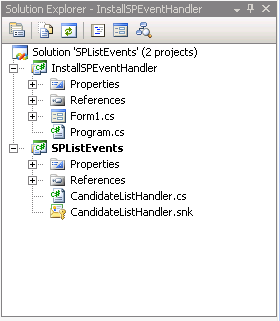
13. Add new item in Candidate list and Status and Company fields shoyuld get poulated automatically.
14.That’s it.


