I have recently contributed to the official SharePoint documentation for developement. Check it out here:
https://docs.microsoft.com/en-us/sharepoint/dev/sp-add-ins/working-with-lists-and-list-items-with-rest
Showing posts with label Office365. Show all posts
Showing posts with label Office365. Show all posts
Saturday, January 5, 2019

Wednesday, October 18, 2017
Publishing Sites vs Communication Sites
It was announced in SharePoint Virtual Summit in May 2017, a more modern way of content publishing is released called Communication Sites. Now you can read all about Communication sites here and here, I am going to focus on the major differences between the daddy (Publishing Sites) and the newborn (Communication Sites) since both are geared towards a similar requirement.....Content Publishing.
When NOT to use Publishing & Communication Sites?
If you have a scenario where few people (generally one or two) are creating content for a larger audience (generally whole organization) then use publishing sites or more recommended communication sites.
 If a smaller group is communicating/collaborating among them solves (just like a team would do) then use Team Sites. Do not use Publishing Sites or Communication Sites for such scenarios. Its an over kill. Also between small groups the communication is generally two way.

Publishing Sites vs Communication Sites:
Conclusion:
Now that we have learned the major differences between the both site types, here is what we should do in order to choose between them.
We should start designing publishing solutions with Communication sites in mind. It gives many features OOB which have been requested by customer again and again, specially the responsive UI. It is quicker to create content, faster to publish and cleaner to manage Communication sites without any developer's involvement. At this point it does not have features like cross-site publishing, Approval workflow, multi language etc but many(not all) of these features are in pipeline as told in community forum :o).
Note: Publishing Sites are not deprecated at this point.
On the other hand Publishing Site have more functionality at this point and gives you more control over branding as you can introduce your own HTML/CSS and can write custom MasterPages. But this great functionality comes at the cost of custom code and developer's involvement which can result in higher cost for publishing.
When NOT to use Publishing & Communication Sites?
If you have a scenario where few people (generally one or two) are creating content for a larger audience (generally whole organization) then use publishing sites or more recommended communication sites.


Publishing Sites vs Communication Sites:


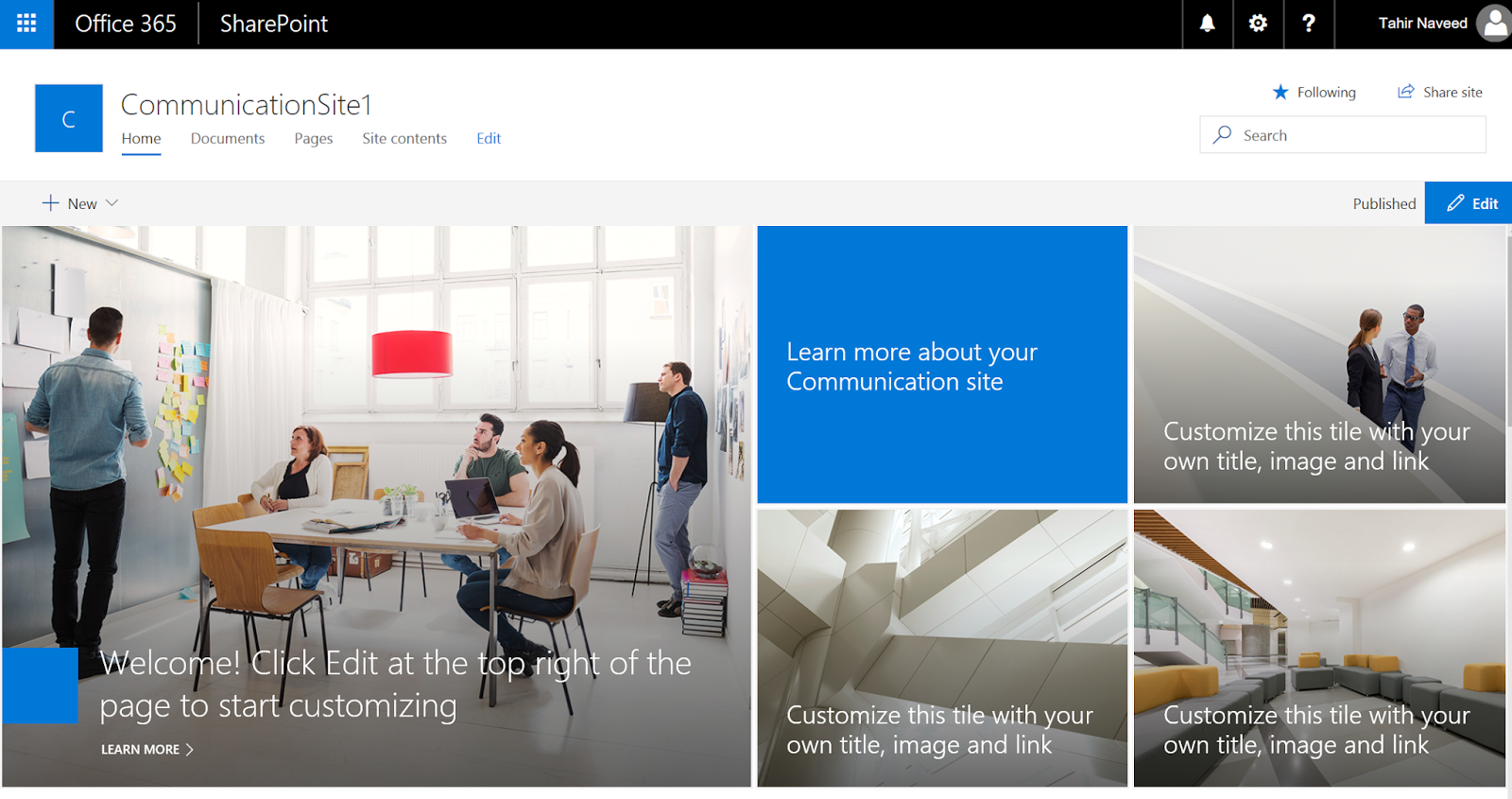


Conclusion:
Now that we have learned the major differences between the both site types, here is what we should do in order to choose between them.
We should start designing publishing solutions with Communication sites in mind. It gives many features OOB which have been requested by customer again and again, specially the responsive UI. It is quicker to create content, faster to publish and cleaner to manage Communication sites without any developer's involvement. At this point it does not have features like cross-site publishing, Approval workflow, multi language etc but many(not all) of these features are in pipeline as told in community forum :o).
Note: Publishing Sites are not deprecated at this point.
On the other hand Publishing Site have more functionality at this point and gives you more control over branding as you can introduce your own HTML/CSS and can write custom MasterPages. But this great functionality comes at the cost of custom code and developer's involvement which can result in higher cost for publishing.
Monday, June 12, 2017
Microsoft Flow - HTTP REST Call
In this blog post, I will cover what is a workflow and how we can create a workflow using Microsoft Flow that can make HTTP REST calls to bring the stock price and then I will discuss how we can use this workflow in a iPhone app in following sections:
My definition of a workflow is, steps to complete a task. That's it :o).
For example, if you want to get your driving license then you follow the steps provided on the DMV's site (1-Bring documents, 2-Fill paper work, 3-Get your photo taken, 4-Pay fee). In this example, our task is to get the driving license and in order to complete this task we have to follow four steps.
So without further due lets create a workflow which will make HTTP REST call to grab stock quote of a provided ticker....and we will be using this workflow in our iPhone.
Ref: https://docs.microsoft.com/en-us/azure/logic-apps/logic-apps-workflow-definition-language
- Workflow
- Microsoft Flow
- HTTP REST Call from MS Flow
- Using the Workflow in the Flow App
My definition of a workflow is, steps to complete a task. That's it :o).
For example, if you want to get your driving license then you follow the steps provided on the DMV's site (1-Bring documents, 2-Fill paper work, 3-Get your photo taken, 4-Pay fee). In this example, our task is to get the driving license and in order to complete this task we have to follow four steps.
Microsoft Flow:
In SharePoint world we used to have SharePoint Designer (which we all love) to create workflows and do other stuff. Now that there is not going to be a newer version of SPD, Microsoft has provided another awesome way of creating workflows called Microsoft Flow. Its a cloud based service which lives outside the SharePoint world, can be used on a mobile phone and can interact with many services like SPO list/lib, Outlook, Azure, Salesforce, Twitter, Google Drive, Gmail and the list goes on and on. Microsoft Flow is a no-code/low-code solution and it can also interact with SharePoint on-prem. So without further due lets create a workflow which will make HTTP REST call to grab stock quote of a provided ticker....and we will be using this workflow in our iPhone.
HTTP REST Call from MS Flow:
- Go to Microsoft Flow, sign-in and create an empty flow "Stock Price".
- Now I am going to add steps to trigger the workflow manually which will make an HTTP REST call and then parse the results and show me the price in a mobile notification.
- For that my workflow will have following steps: An input button, HTTP Request step, Compose step, Parse JSON step and then Mobile Notification step as shown in the diagram below:
- Manually trigger a workflow step adds a button on your iPhone app which takes a stock ticker input. You have to install the Flow app from the App Store in order to view it.

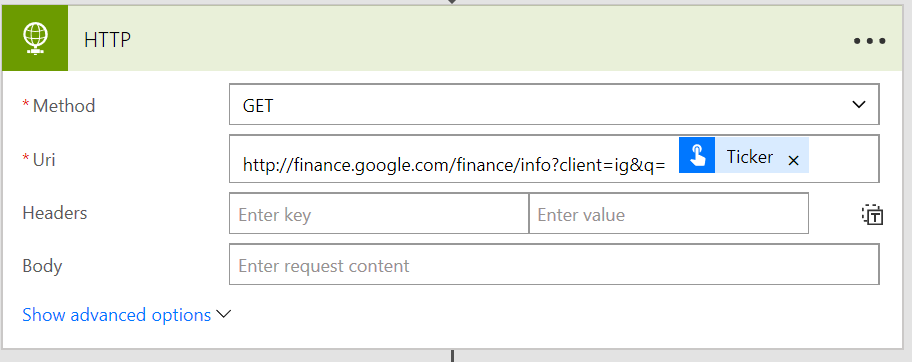
- HTTP step will make REST call to google finance API via GET method by providing the stock ticker taken in the previous step. e.g. http://finance.google.com/finance/info?client=ig&q=MSFT
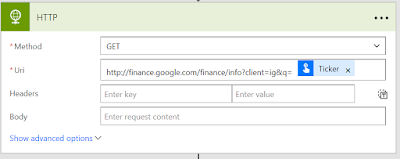
- As a result we will get JSON response. I added Compose step to strip out the special characters in the response by using a WDL(Workflow Definition Language) function: "@replace(body('HTTP'), '// ', '')".

- After removing the special characters I should be able to parse JSON by providing a valid schema. You can generate schema by adding your response to the blue link provided at the bottom of this step.

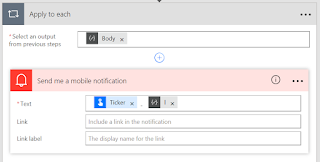
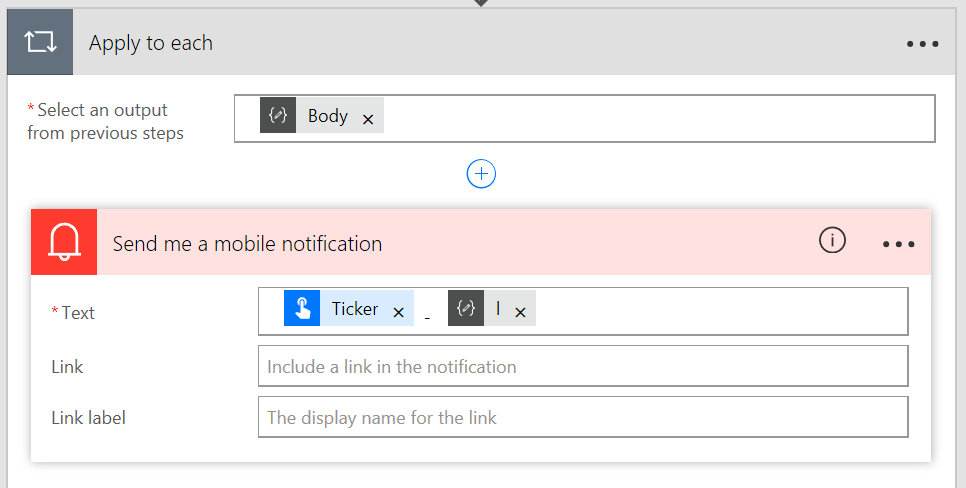
- Now lets add the notification step and add Ticker and l outputs to the Text field of this step. Note that notification step will be placed inside the loop automatically as JSON response can have multiple results for l.




Using the Workflow in the Flow App
- Install the Flow app from App Store in your iPhone.
- Sign-in and go to the Buttons. You should be able to see all your buttons there.
- Click "Stock Price" button and provide the symbol MSFT and then hit Done.


- This will start the workflow and you should get the push notification with the stock ticker with the price quote in it.


Ref: https://docs.microsoft.com/en-us/azure/logic-apps/logic-apps-workflow-definition-language
Wednesday, February 10, 2016
SharePoint - PowerApps (Mobile Apps)
So I can create mobile apps for Office365 without writing any code using Microsoft Power Apps......This is Awesome.
URL: https://powerapps.microsoft.com/en-us/tutorials/get-started-test-drive/#save-and-share-your-app
URL: https://powerapps.microsoft.com/en-us/tutorials/get-started-test-drive/#save-and-share-your-app
Subscribe to:
Posts (Atom)
-
 Scenario: Updating the Master Page for SharePoint Online is not recommended by Microsoft now.....fine. So how do we change the UI then? And...
-
 Microsoft introduced Office Graph a couple of months back which uses machine learning techniques to connect people to the relevant content,...
-
 Recently I came across this amazing article of Claudio ( http://www.endusersharepoint.com/2009/04/20/finally-dynamic-charting-in-wss-no-code...