I have recently contributed to the official SharePoint documentation for developement. Check it out here:
https://docs.microsoft.com/en-us/sharepoint/dev/sp-add-ins/working-with-lists-and-list-items-with-rest
Showing posts with label SharePoint. Show all posts
Showing posts with label SharePoint. Show all posts
Saturday, January 5, 2019

Wednesday, July 4, 2018
Wednesday, October 18, 2017
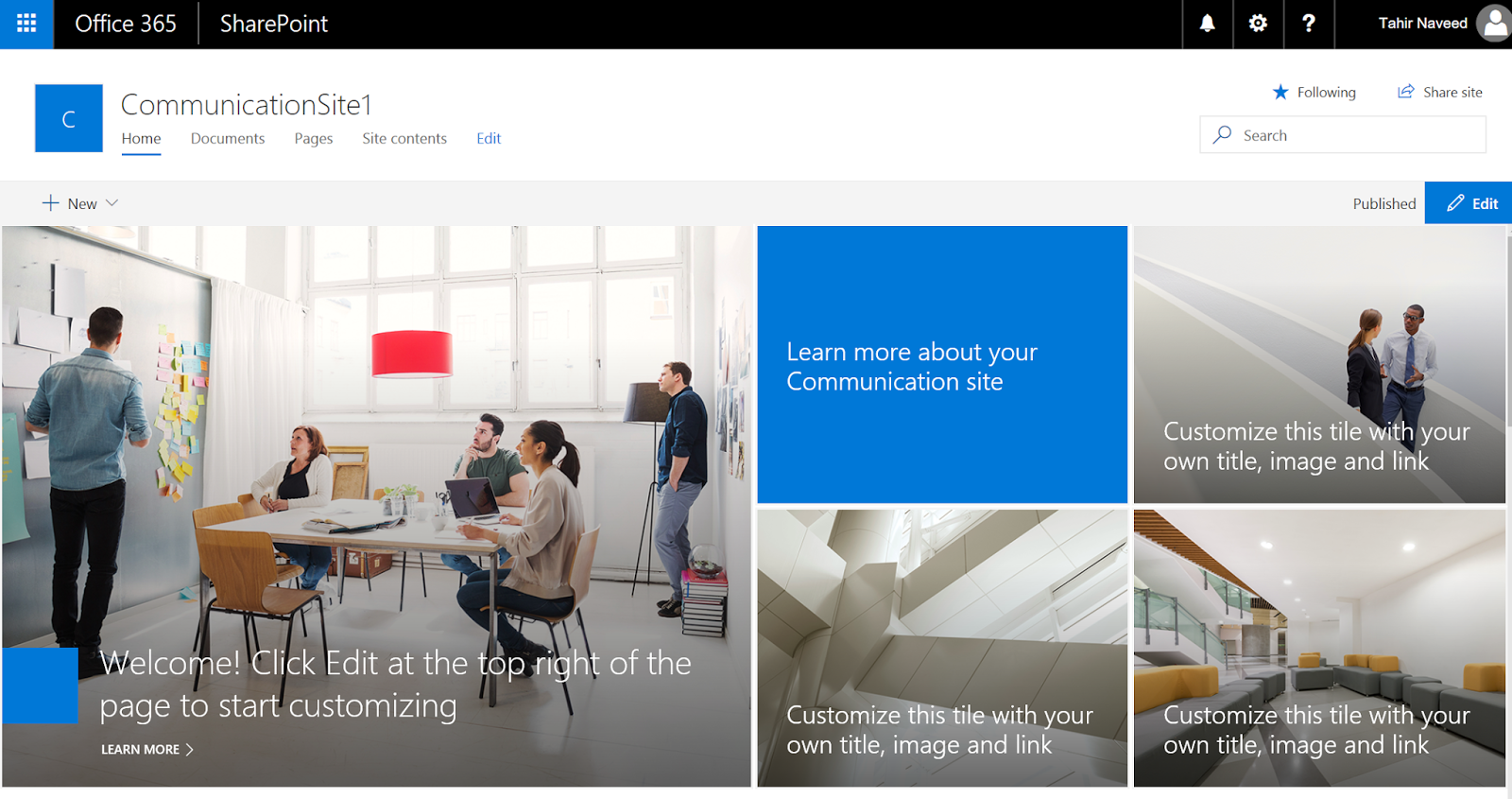
Publishing Sites vs Communication Sites
It was announced in SharePoint Virtual Summit in May 2017, a more modern way of content publishing is released called Communication Sites. Now you can read all about Communication sites here and here, I am going to focus on the major differences between the daddy (Publishing Sites) and the newborn (Communication Sites) since both are geared towards a similar requirement.....Content Publishing.
When NOT to use Publishing & Communication Sites?
If you have a scenario where few people (generally one or two) are creating content for a larger audience (generally whole organization) then use publishing sites or more recommended communication sites.
 If a smaller group is communicating/collaborating among them solves (just like a team would do) then use Team Sites. Do not use Publishing Sites or Communication Sites for such scenarios. Its an over kill. Also between small groups the communication is generally two way.

Publishing Sites vs Communication Sites:
Conclusion:
Now that we have learned the major differences between the both site types, here is what we should do in order to choose between them.
We should start designing publishing solutions with Communication sites in mind. It gives many features OOB which have been requested by customer again and again, specially the responsive UI. It is quicker to create content, faster to publish and cleaner to manage Communication sites without any developer's involvement. At this point it does not have features like cross-site publishing, Approval workflow, multi language etc but many(not all) of these features are in pipeline as told in community forum :o).
Note: Publishing Sites are not deprecated at this point.
On the other hand Publishing Site have more functionality at this point and gives you more control over branding as you can introduce your own HTML/CSS and can write custom MasterPages. But this great functionality comes at the cost of custom code and developer's involvement which can result in higher cost for publishing.
When NOT to use Publishing & Communication Sites?
If you have a scenario where few people (generally one or two) are creating content for a larger audience (generally whole organization) then use publishing sites or more recommended communication sites.


Publishing Sites vs Communication Sites:




Conclusion:
Now that we have learned the major differences between the both site types, here is what we should do in order to choose between them.
We should start designing publishing solutions with Communication sites in mind. It gives many features OOB which have been requested by customer again and again, specially the responsive UI. It is quicker to create content, faster to publish and cleaner to manage Communication sites without any developer's involvement. At this point it does not have features like cross-site publishing, Approval workflow, multi language etc but many(not all) of these features are in pipeline as told in community forum :o).
Note: Publishing Sites are not deprecated at this point.
On the other hand Publishing Site have more functionality at this point and gives you more control over branding as you can introduce your own HTML/CSS and can write custom MasterPages. But this great functionality comes at the cost of custom code and developer's involvement which can result in higher cost for publishing.
Thursday, May 25, 2017
SharePoint Online Page Load Time with JavaScript
Scenario:
We know that Microsoft don't recommend any kind of load testing against SharePoint Online pages as mentioned here but still customers want to know how much time it takes to load a page to get a feel of the end user experience.
Solution:
To find the page load times, browsers (Edge, Chrome & Firefox) now have built-in support of Navigation Timing which is a JavaScript API to measure the performance of a web page. This API is exposed via performance.timing object. Performance Timing API provides following events of for a web page, which we can use in JavaScript to get the different times of page load:

We know that Microsoft don't recommend any kind of load testing against SharePoint Online pages as mentioned here but still customers want to know how much time it takes to load a page to get a feel of the end user experience.
Solution:
To find the page load times, browsers (Edge, Chrome & Firefox) now have built-in support of Navigation Timing which is a JavaScript API to measure the performance of a web page. This API is exposed via performance.timing object. Performance Timing API provides following events of for a web page, which we can use in JavaScript to get the different times of page load:

Here is an example of JavaScript that calculates the complete page load time, starting from the user pressing the Go button in the browser till the page renders completely:
Load Time: <div id="LoadTime"> </div>

<script type="text/javascript" >

window.onload = function(){
  setTimeout(function(){
    var t = performance.timing;
    document.getElementById('LoadTime').innerHTML = t.loadEventEnd - t.navigationStart;
  }, 0);
}

</script>
Note that above script is calculating difference between loadEvendEnd (very last event) and navigationStart (very first event) which is simulating the end user experience. The time will be displayed in milliseconds.
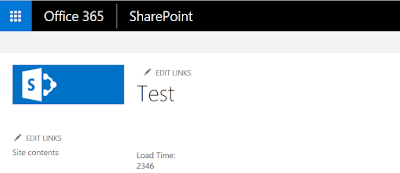
Similarly we can calculate the time between the request sent to server and response that came back from the server by calculating the difference between responseEnd and requestStart events.

Similarly we can calculate the time between the request sent to server and response that came back from the server by calculating the difference between responseEnd and requestStart events.
Tuesday, October 25, 2016
Office365 Subsite Logo Redirection
Scenario:
Sub-site logo points to the sub-site's home page by default...and the requirement is to point it to the top level site's.
Solution:
We can not change Master Page in Office365/SharePoint Online site so we need to embed/inject the following JavaScript:
Sub-site logo points to the sub-site's home page by default...and the requirement is to point it to the top level site's.
Solution:
We can not change Master Page in Office365/SharePoint Online site so we need to embed/inject the following JavaScript:
<script type="text/javascript" src="https://ajax.googleapis.com/ajax/libs/jquery/1.7.2/jquery.min.js"></script>

<script language="javascript" type="text/javascript">

$(document).ready(function () {

    $('#ctl00_onetidProjectPropertyTitleGraphic').attr('href','/sites/Portal');
    $('#ctl00_onetidProjectPropertyTitleGraphic').removeAttr('id');

});

</script>
Sunday, June 12, 2016
SharePoint DSC
SharePoint DesierState Configuration has Ben released.
Url: https://github.com/PowerShell/SharePointDsc
While in pre-release mode it was called xSharePoint.
Url: https://github.com/PowerShell/SharePointDsc
While in pre-release mode it was called xSharePoint.
Thursday, March 3, 2016
SharePoint - Export/Import Subsite
Scenario:
Lets suppose we have two SharePoint 2013 site collections and we want to export a sub-site from one site collection to another using PowerShell, then below is the answer.
Source: http://domain.com/sites/Site1/SubsiteA
Destination: http://domain.com/sites/Site2/SubsiteA
Solution:
Note: All the list, libraries, documents etc will get exported except for the workflows.
Ref: https://technet.microsoft.com/en-us/library/ff607895.aspx
Ref: https://technet.microsoft.com/en-us/library/ff607613.aspx
Ref: https://technet.microsoft.com/en-us/library/ee663490.aspx
Lets suppose we have two SharePoint 2013 site collections and we want to export a sub-site from one site collection to another using PowerShell, then below is the answer.
Source: http://domain.com/sites/Site1/SubsiteA
Destination: http://domain.com/sites/Site2/SubsiteA
Solution:
Export: Export-SPWeb "http://domain.com/sites/Site1/SubsiteA" -Path "C:\Temp\Export.cmp"
Import: Import-SPWeb "http://domain.com/sites/Site2/SubsiteA" -Path "C:\Temp\Export.cmp"
Note: All the list, libraries, documents etc will get exported except for the workflows.
Ref: https://technet.microsoft.com/en-us/library/ff607895.aspx
Ref: https://technet.microsoft.com/en-us/library/ff607613.aspx
Ref: https://technet.microsoft.com/en-us/library/ee663490.aspx
Wednesday, February 10, 2016
SharePoint - PowerApps (Mobile Apps)
So I can create mobile apps for Office365 without writing any code using Microsoft Power Apps......This is Awesome.
URL: https://powerapps.microsoft.com/en-us/tutorials/get-started-test-drive/#save-and-share-your-app
URL: https://powerapps.microsoft.com/en-us/tutorials/get-started-test-drive/#save-and-share-your-app
Friday, December 4, 2015
SharePoint - Responsive Design (Framework)
You can go to my previous post where I have explained how to implement responsive design in a SharePoint site using Bootstrap from scratch. Now we you will quickly figure out that implementing responsive design from scratch will take a lot of time, effort and learning. So in order to save time we will use a pre-built framework developed by a team of awesome people.
Perform following steps for SharePoint Online sites:
Perform following steps for SharePoint Online sites:
- Download the WSP.
- Follow page 17-22 of the documentation.
- And the site will look like this:

 DesktopMobile
 - Now after the site has been made responsive and works all great. You can download the Master Page foundation-4.3.2-server.master and customize according to your own branding. See pages 23-25 of the documentation.


Tuesday, December 1, 2015
SharePoint - Responsive Design (Bootstrap)
SharePoint Online pages are after all rendered as HTML/CSS and Java Script. In this post I will show how to create a responsive design for SharePoint Online pages using Bootstrap so that they look elegant on different screen sizes (Desktop, tablet, phone) .
Bootstrap is the most popular HTML, CSS, and JS framework for developing responsive, mobile first projects on the web. You can start learning about bootstrap here.
HTML Framework:
Following is the HTML framework that a HTML page should match in order to be responsive to multiple screen sizes.
This code will create 2 responsive divs inside a main container div. Container div will render the content inside the two divs as following on Desktop and the Mobile devices with the help of Bootstrap libraries:
Responsive SharePoint Page:
Now lets incorporate this framework in to a SharePoint Site.
Bootstrap is the most popular HTML, CSS, and JS framework for developing responsive, mobile first projects on the web. You can start learning about bootstrap here.
HTML Framework:
Following is the HTML framework that a HTML page should match in order to be responsive to multiple screen sizes.
<html lang="en">
  <head>
    <title>Bootstrap 101</title>

    <!-- Latest compiled and minified CSS -->
    <link rel="stylesheet" href="https://maxcdn.bootstrapcdn.com/bootstrap/3.3.5/css/bootstrap.min.css">

    <!-- Latest compiled and minified JavaScript -->
    <script src="https://maxcdn.bootstrapcdn.com/bootstrap/3.3.5/js/bootstrap.min.js"></script>

  </head>
  <body>

    <div class="container">
        <div class="row">
            <div class="col-sm-6" style="border:1px red solid">Hello</div>
            <div class="col-sm-6" style="border:1px green solid">World</div>
        </div>
    </div>

  </body>
</html>
This code will create 2 responsive divs inside a main container div. Container div will render the content inside the two divs as following on Desktop and the Mobile devices with the help of Bootstrap libraries:
 |  |
Desktop
|
Mobile
|
Responsive SharePoint Page:
Now lets incorporate this framework in to a SharePoint Site.
- Add following lines in the head tag of Master Page:

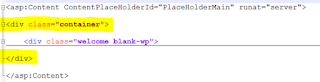
- Add the container div in the page inside the PlaceHolderMain tag so that all the HTML of the page resides inside the container div:
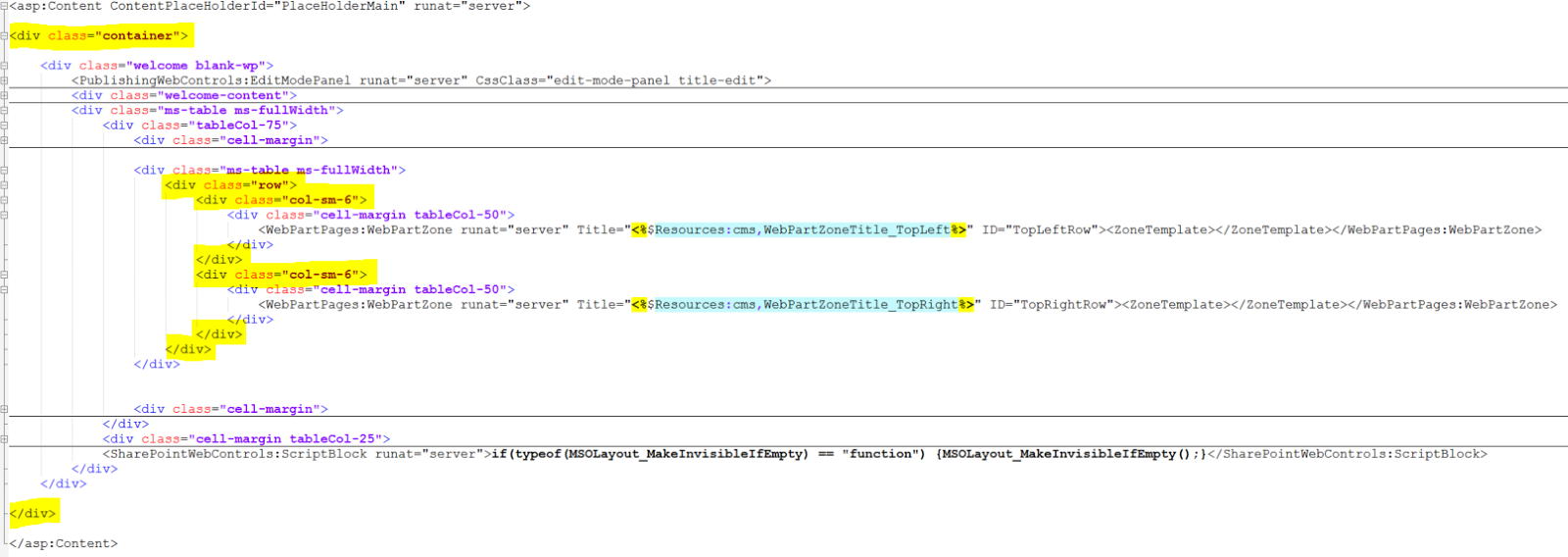
- Add the row div and then add the column divs to hold the actual web parts:

- Now the web parts on the page will be managed by container div and page will look like this on different screens:

 DesktopMobile




Tuesday, August 25, 2015
SharePoint 2016 Preview
SharePoint 2016 Preview is available to download now.
Breaking: #SharePoint Server 2016 IT Preview and cloud hybrid search is here! Download now -> http://t.co/JCPzHQP3K9 pic.twitter.com/GDat7bv5rJ
— Microsoft SharePoint (@SharePoint) August 24, 2015
Wednesday, March 18, 2015
SharePoint 2013 People Search REST Call
You can find the whole API reference for Search REST API here. But when you have to do People Search then you need to put the context around your search Query and it will look like as follows:
Normal Search REST Call:
http://www.sharepointblue.com/SearchCenter/_api/search/query?querytext='*'
People Search REST Call:
http://www.sharepointblue.com/SearchCenter/_api/search/query?querytext='*'&sourceid='b09a7990-05ea-4af9-81ef-edfab16c4e31'
Note: Before firing the People Search request, make sure User Profiles are crawlled inside the SharePoint by crawling: sps3://My_Site_host_URL
Ref: https://msdn.microsoft.com/en-us/library/office/jj163876.aspx
Normal Search REST Call:
http://www.sharepointblue.com/SearchCenter/_api/search/query?querytext='*'
People Search REST Call:
http://www.sharepointblue.com/SearchCenter/_api/search/query?querytext='*'&sourceid='b09a7990-05ea-4af9-81ef-edfab16c4e31'
Note: Before firing the People Search request, make sure User Profiles are crawlled inside the SharePoint by crawling: sps3://My_Site_host_URL
Ref: https://msdn.microsoft.com/en-us/library/office/jj163876.aspx
Friday, September 19, 2014
Playing Video in SharePoint
In my recent project I have used JWPlayer to play videos in a SharePoint portal and it works great.
Here is the demo:
Here is the demo:
Loading the player...
Tuesday, July 1, 2014
SharePoint Community - Featured Member
I got an email today that I have been featured at SharePoint Community website......SWEEEEEEEEEEET.
Btw SharePoint Community is one of the largest online communities for SharePoint professionals.

Btw SharePoint Community is one of the largest online communities for SharePoint professionals.
Thursday, June 12, 2014
SharePoint 2013 - Displaying Charts using Excel Web Access
Excel Web Access web part comes with Excel Services capabilities in SharePoint. This web part is used to display data from an Excel workbook on a SharePoint site so that user can share reports and charts with other users.
In this post, I am going to explain how to display a chart from an excel file to a SharePoint Page using Excel Web Access web part.
In this post, I am going to explain how to display a chart from an excel file to a SharePoint Page using Excel Web Access web part.
- Create an Excel work book with the following data in it.
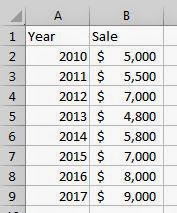
- Insert a graph chart by selecting the data rang

- Save the workbook (mine is called Sales.xlsx) and upload it in a document library in SharePoint.

- Now edit and add an Excel Web Access web part on any page where you want to display the chart.

- Edit web part to see its properties

- Set Workbook (select Salex.xlsx from the document library) and Named Item properties (Chart 1) and then hit OK on the web part. By default all charts are named as Chart 1, Chart 2 etc

- You should be able to see the chart from the Excel workbook on the page.

Every time you have a new data in Excel workbook, just upload the file into the document library and refresh the page and you will see the updated chart.
Wednesday, April 30, 2014
Tuesday, December 3, 2013
PowerShell - Get List Size
Following is the PowerShell script to get the size of a SharePoint list by calculating the size of the attachments for all items in a list:
Ref: http://sharepoint.stackexchange.com/questions/12652/get-total-size-of-attached-files-on-all-list-items-in-sharepoint-2007with-powers
function GetListSize($List)
{
    [long]$listSize = 0
    $allAttachmentsFolder = $List.RootFolder.SubFolders["Attachments"]

    foreach ($listItem in $List.Items)
    {
        $listItemAttachments = $listItem.Attachments
        $attachmentsFolder = $allAttachmentsFolder.SubFolders[$listItem.ID]
        foreach($file in $listItemAttachments)
        {
            $listSize += $attachmentsFolder.Files[$file].Length
        }
    }

    $totalInMb = ($listSize/1024)/1024
    $totalInMb = "{0:N2}" -f $totalInMb

    return $totalInMb
}
Ref: http://sharepoint.stackexchange.com/questions/12652/get-total-size-of-attached-files-on-all-list-items-in-sharepoint-2007with-powers
Monday, November 11, 2013
Free E-Books by Microsoft
Yup, you read it right. Free e-books from Microsoft.
http://social.technet.microsoft.com/wiki/contents/articles/11608.e-book-gallery-for-microsoft-technologies.aspx
http://social.technet.microsoft.com/wiki/contents/articles/11608.e-book-gallery-for-microsoft-technologies.aspx
Tuesday, May 7, 2013
PowerShell - Saving Site and Sub-site in XML file
Scenario:
I had a requirement today to get all personal sites (site collections) and the blog sites (sub-sites) under MySite Host Site and save in an XML file.
Following powershell script does the trick for a web application:
PowerShell Script:
Result (MySites.xml):
I had a requirement today to get all personal sites (site collections) and the blog sites (sub-sites) under MySite Host Site and save in an XML file.
Following powershell script does the trick for a web application:
PowerShell Script:
Add-PSSnapin microsoft.sharepoint.powershell -ErrorAction SilentlyContinue

$webs =  Get-SPSite -webapplication "http://mysite.domain.com"
$FilePath = "C:\Temp\MySites.xml"

Write-Host Getting all MySites...

$xml = "<PersonalSite>"
Foreach ($oneweb in $webs)
{
    $web = $oneweb.RootWeb

    if ($web.WebTemplate -eq "SPSMSITEHOST" -Or $web.WebTemplate -eq "SPSPERS")
    {
        $xml = $xml + "<Site>"
        $xml = $xml + "<MySite>" + $oneweb.URL + "</MySite>"
        Write-Host "Processing:" $oneweb.URL

        $spWeb = Get-SPweb $oneweb.URL
        foreach($subSite in $spWeb.Webs)
        {
            if ($subSite.WebTemplate -eq "BLOG")
            {
                $xml = $xml + "<Blog>" + $subSite.URL + "</Blog>"
            }
        }
        $spWeb.Dispose()

        $xml = $xml + "</Site>"
    }
}
$xml = $xml + "</PersonalSite>"
#Write-Host $xml

$xml | out-File -FilePath $FilePath

Write-Host "XML file has been generate."
Write-Host "Press anyke to continue..."
$x = $host.UI.RawUI.ReadKey("NoEcho,IncludeKeyDown")
Result (MySites.xml):
<PersonalSite>
  <Site>
    <MySite>http://mysite.domain.com/my</MySite>
  </Site>
  <Site>
    <MySite>http://mysite.domain.com/my/personal/mjackson</MySite>
    <Blog>http://mysite.domain.com/my/personal/mjackson/Blog</Blog>
  </Site>
  <Site>
    <MySite>http://mysite.domain.com/my/personal/jdoe</MySite>
    <Blog>http://mysite.domain.com/my/personal/jdoe/Blog</Blog>
  </Site>
  <Site>
    <MySite>http://mysite.domain.com/my/personal/sman</MySite>
    <Blog>http://mysite.domain.com/my/personal/sman/Blog</Blog>
  </Site>
</PersonalSite>
Tuesday, April 2, 2013
PowerShell - Change Master Page
Scenario:
I had to write a quick PowerShell script to change the Master Page for a SharePoint 2013 site. Thought to share it with the world.
Solution:
I had to write a quick PowerShell script to change the Master Page for a SharePoint 2013 site. Thought to share it with the world.
Solution:
cls;

[void][reflection.assembly]::Loadwithpartialname("Microsoft.SharePoint")

$SiteUrl = "http://mySite1919/sites/MasterTest";
$NewMasterPage = "/_catalogs/masterpage/MasterPage_custom.master";

$Site=[Microsoft.SharePoint.SPSite]($SiteUrl);
$SiteWeb = $Site.openweb();
$SiteRelativeUrl = $Site.ServerRelativeUrl.TrimEnd('/');

Write-Host "Site: " $SiteUrl;
Write-Host "Current MasterPage: " $SiteWeb.CustomMasterUrl;

#Site Master Page
$SiteWeb.CustomMasterUrl = $SiteRelativeUrl + $NewMasterPage;
#System Master Page
$SiteWeb.MasterUrl = $SiteRelativeUrl + $NewMasterPage;

$SiteWeb.Update();

Write-Host "New MasterPage: " $SiteWeb.CustomMasterUrl

$SiteWeb.Dispose();
Subscribe to:
Posts (Atom)
-
 Scenario: Updating the Master Page for SharePoint Online is not recommended by Microsoft now.....fine. So how do we change the UI then? And...
 -
 Microsoft introduced Office Graph a couple of months back which uses machine learning techniques to connect people to the relevant content,...
 -
 Recently my customers was looking for a solution where on-field guys can search for answers related to their tasks and it was a perfect scen...